

Making classic split monograms with the Split Monogram Generator
Difficulty: easy. Time: 10 to 20 minutes of design, plus machine time. Best methods, in order: laser cutting, vinyl cutting, 3D printing.
The split monogram is the most requested personalized design in laser crafting for a reason: a big decorative initial, split through the middle, with a flowing name bridging the gap. This tool builds the whole composition for you: pick the letter, type the name, and it handles the split, the bars, and the connections so everything stays one piece.
You get independent font choices for the initial and the name, so a bold serif initial can carry a delicate script name. The export works for laser cutting, vinyl decals, and 3D printed signs alike.

On this page (6)
What you need
- Laser cutting: laser cutter, 3 mm laser-grade plywood or acrylic
- Vinyl cutting: Cricut or similar, adhesive vinyl, transfer tape, weeding tools
- 3D printing: any FDM printer, one or two filament colors
1. Choose the initial and name
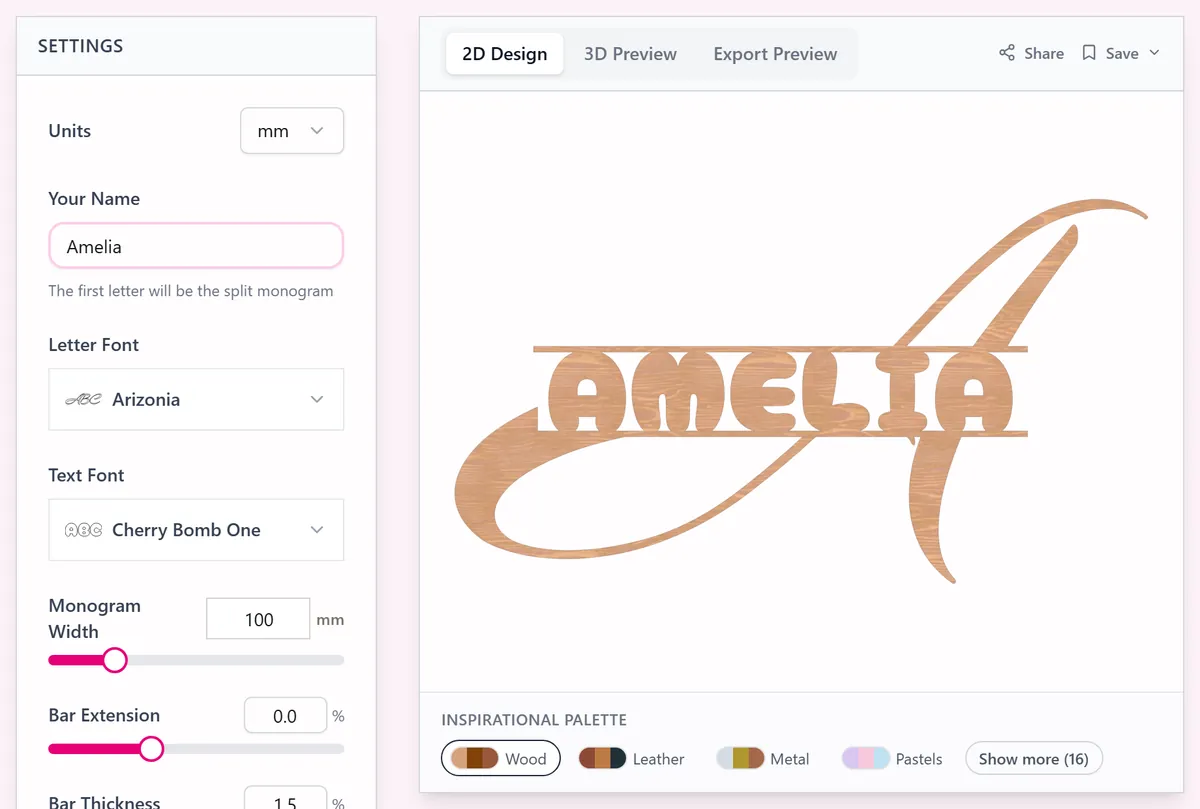
Open the tool, set the initial and the name, and pick a font for each: the letter font sets the personality of the big initial, while the text font styles the name running through the split. Strong contrast between the two (bold initial, script name) is the classic look.
2. Tune the split
- Monogram Width sets the finished size in real units (switch with the Units toggle).
- Text Size scales the name within the split; keep it large enough that the smallest letters survive cutting.
- Bar Extension lengthens the horizontal bars flanking the name, framing it across the full width.
- Bar Thickness beefs up those bars; on pieces over 200 mm wide, thicker bars keep the structure rigid.
3. Export
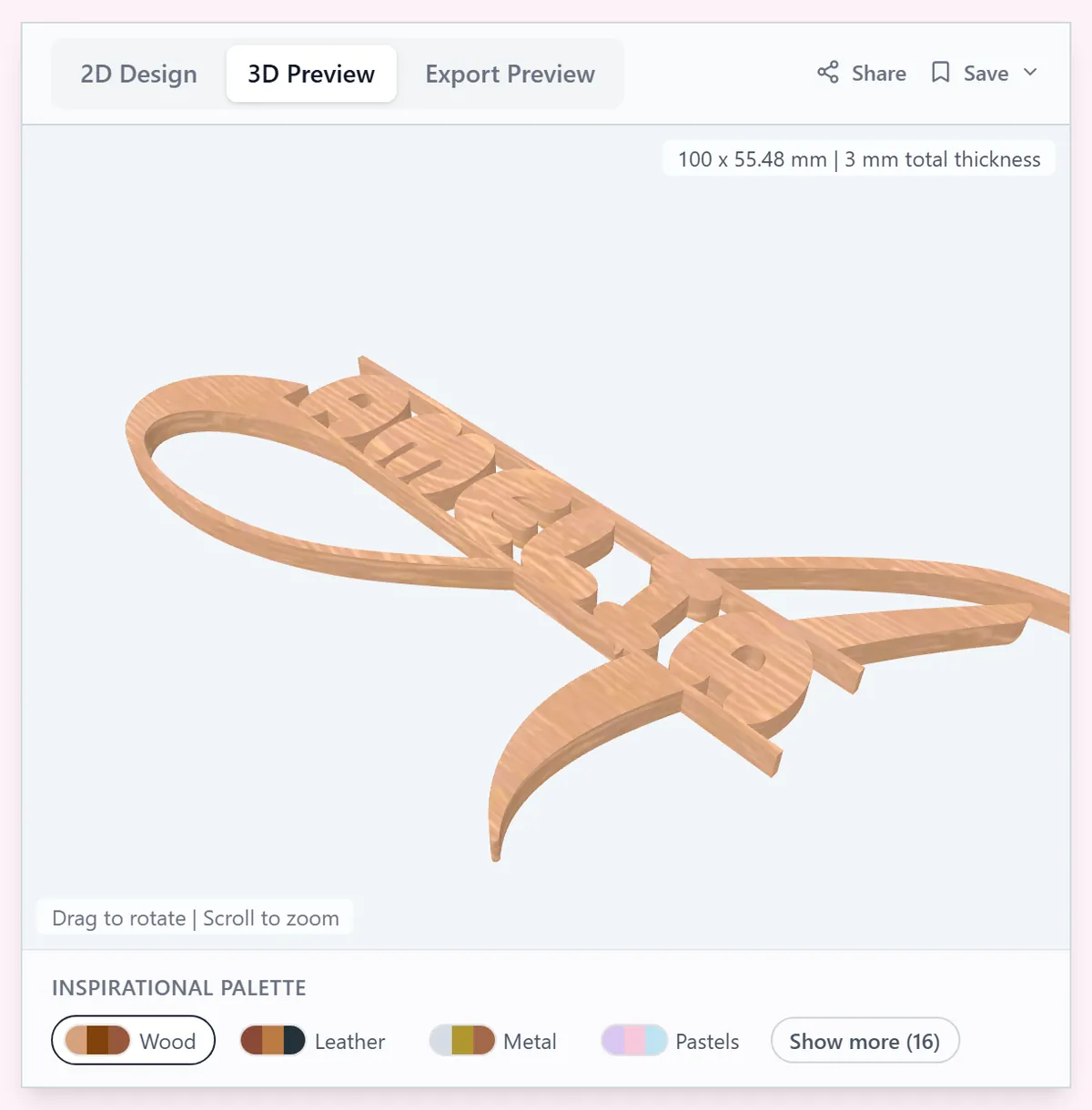
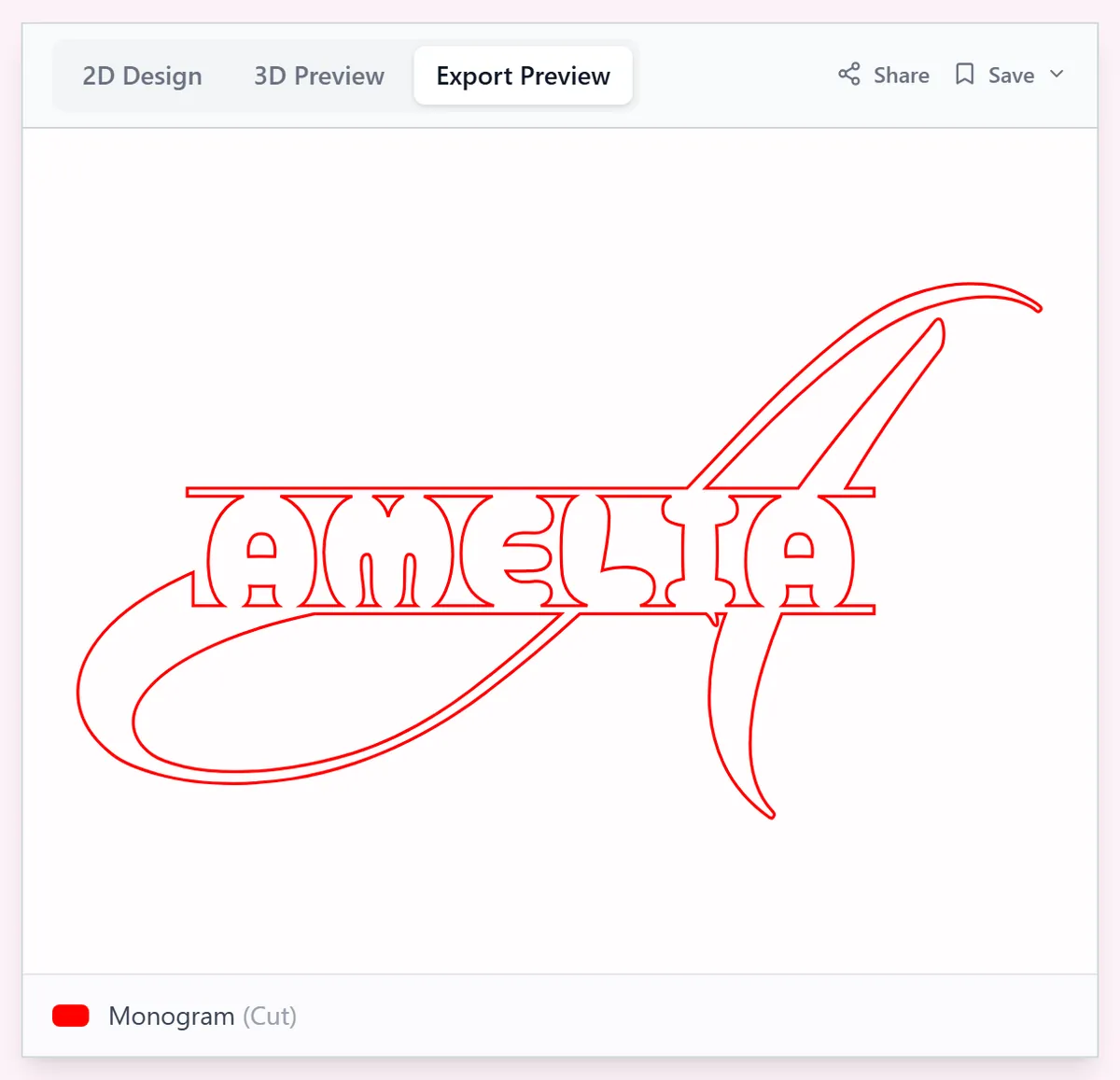
Download an SVG for laser or vinyl cutting, or an STL/3MF at your chosen depth for 3D printing. The monogram exports as a single connected piece.
Choose your build method
Laser Cutting
Cutting the monogram
- Import the SVG and scale-check; door hangers usually run 300 to 450 mm wide.
- Cut from 3 mm plywood for paint-it-yourself blanks, or two-tone acrylic for a finished gift.
- Mask the face on wood; the narrow name strokes stain fastest.
- Support the piece as it finishes cutting so the name bridge does not sag and fuse.
- Paint or stain, then add ribbon through the top of the initial for a door hanger.
Vinyl Cutting
Cutting a decal
- Import the SVG into your cutter software; it is pre-welded into one shape.
- Cut from adhesive vinyl and weed the background, watching the small counters in the script name.
- Apply with transfer tape to glass blocks, front doors, car windows, or tumblers.
- For porch signs, cut the monogram as a paint stencil instead and stencil it onto a painted board.
3D Printing
Printing a monogram sign
- Export the 3MF at 4 to 8 mm depth depending on size; wider monograms want more depth for stiffness.
- Print flat on a smooth plate, 3 perimeters, 15 percent infill.
- If the name strokes slice too thin, raise Text Size or Bar Thickness in the tool rather than scaling the model.
- Swap filament color near the top layers for a two-tone face.
- Glue a sawtooth hanger or magnet strip on the back for instant wall art.
Next steps and project ideas
- Classic wedding gift: last initial with the married surname and a paint finish to match their decor.
- New-baby version: first initial with the baby's full name for the nursery door.
- Cut in clear acrylic and edge-light it on a small LED base for a desk piece.
- Established-year add-on: run the year through a second smaller monogram below the name.
- Make a coordinated mailbox decal and porch sign from the same file.
- Teacher gift: classroom door monogram with their surname in school colors.
- Cut at ornament size (90 mm) for personalized Christmas gifts in bulk.
- Pair a walnut initial layer with a maple name backer for a premium two-wood look.
Take the design into your software
- How to use MyLaserTools with LightBurn
- Use MyLaserTools in xTool Studio: SVG cutting and CO₂ engraving
- Cut vinyl and Print Then Cut MyLaserTools designs in Cricut Design Space
- Print and cut MyLaserTools designs in Silhouette Studio
- 3D print MyLaserTools models: Bambu, Snapmaker, PrusaSlicer and Cura
- Browse all software guides
Was this guide helpful?
More in Text and lettering

Keep up with MyLaserTools.
Email me about new tools, product updates, tutorials, and occasional MyLaserTools offers. Unsubscribe at any time.
© 2026 MyLaserTools.com. All rights reserved.