

Print MyLaserTools PDFs and PNGs at actual size on an inkjet printer
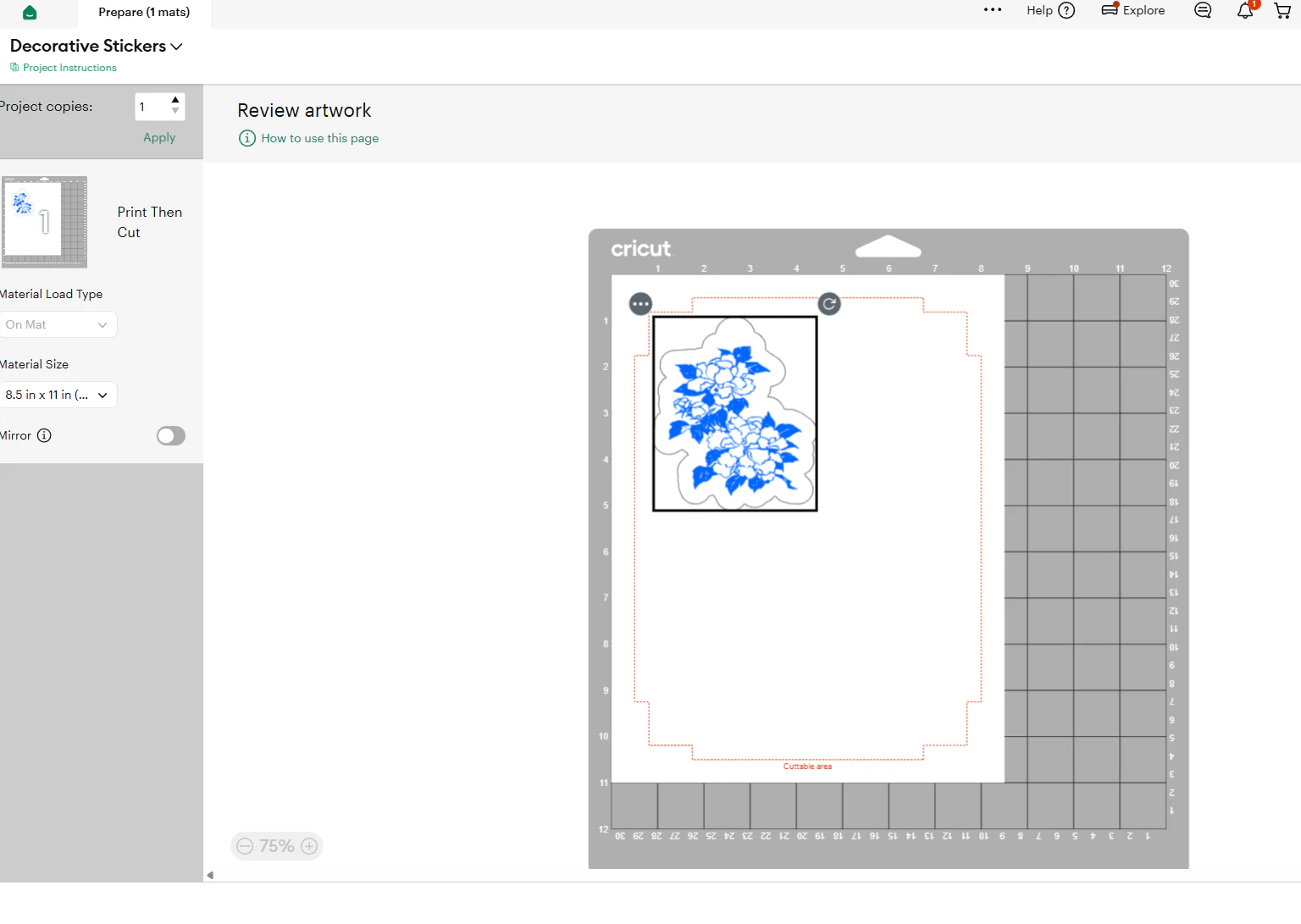
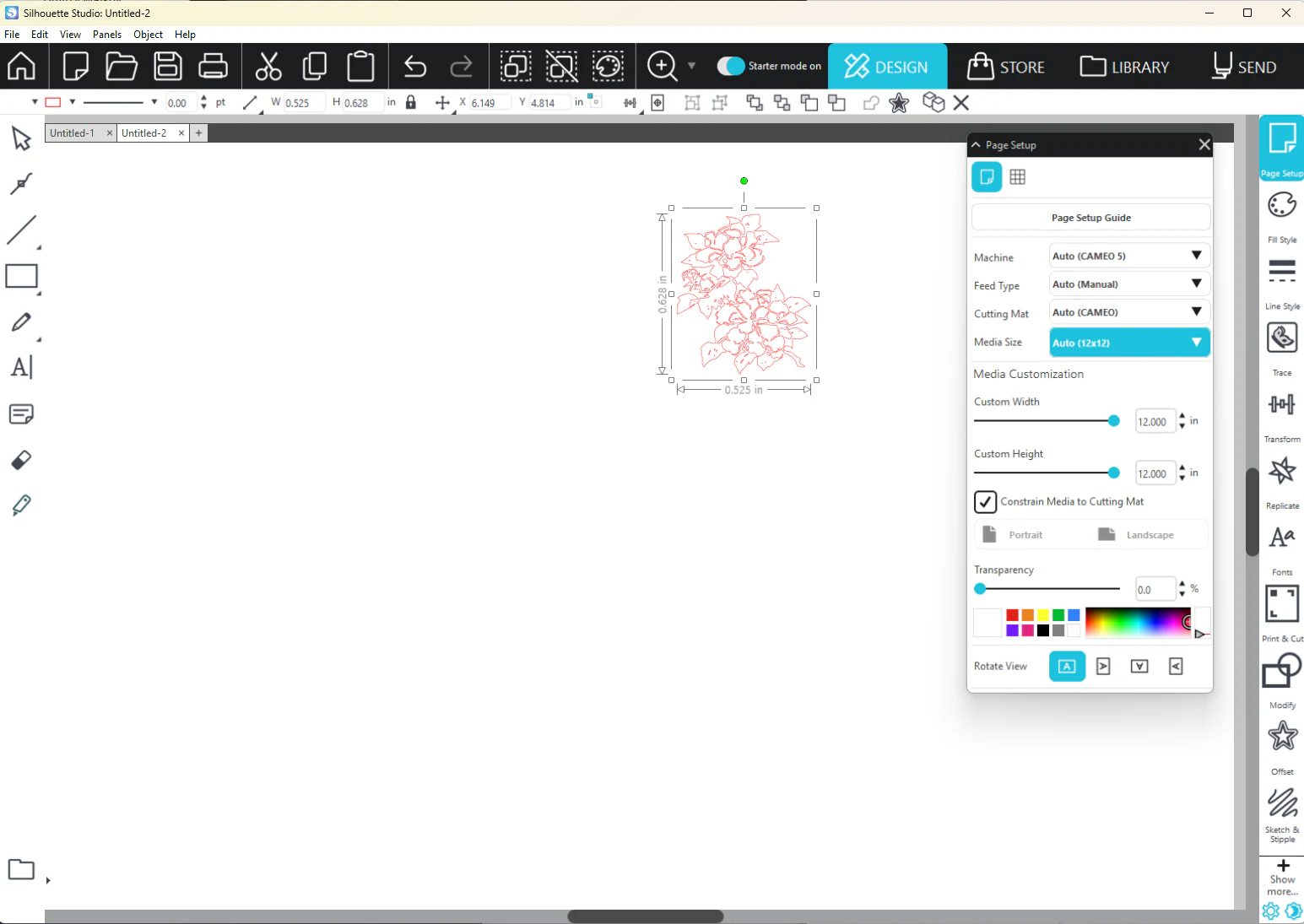
A framed print, a paper template and a print-and-cut sheet have different constraints. This guide covers standalone inkjet/PDF printing. For Cricut or Silhouette registration, print through their own software instead.
On this page (5)
What you need
- An exported PDF where available, or a PNG placed in a document at a defined size.
- Inkjet-compatible paper and the printer driver for your exact model.
1. Match the document to the paper
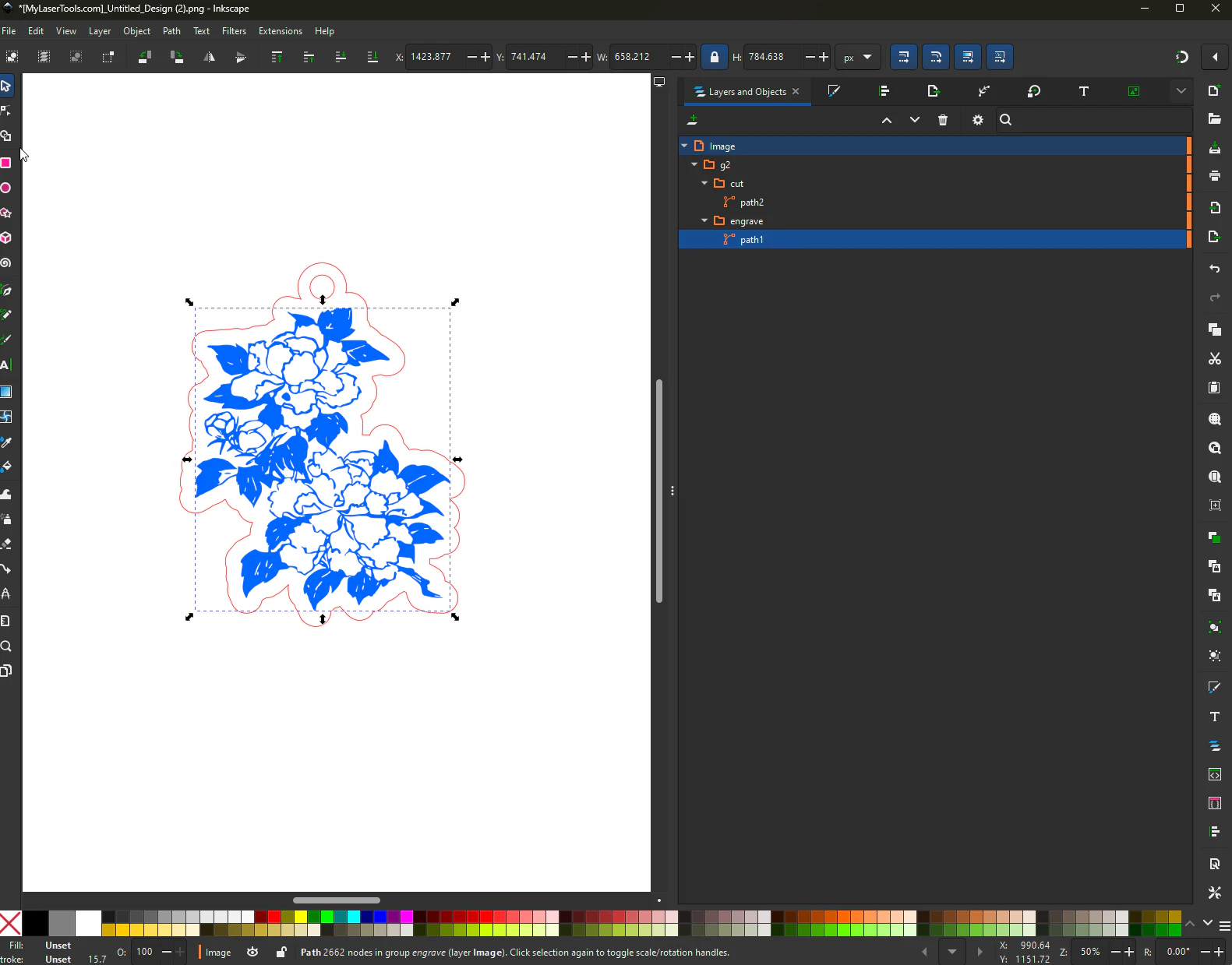
Open the PDF in Acrobat Reader or another PDF viewer with explicit print-scale controls. Confirm the document dimensions and select matching paper and orientation. For a PNG, use a layout application such as Inkscape or Illustrator to set its physical width; opening an image at “100%” on screen does not define its printed size.
2. Choose actual size when dimensions matter
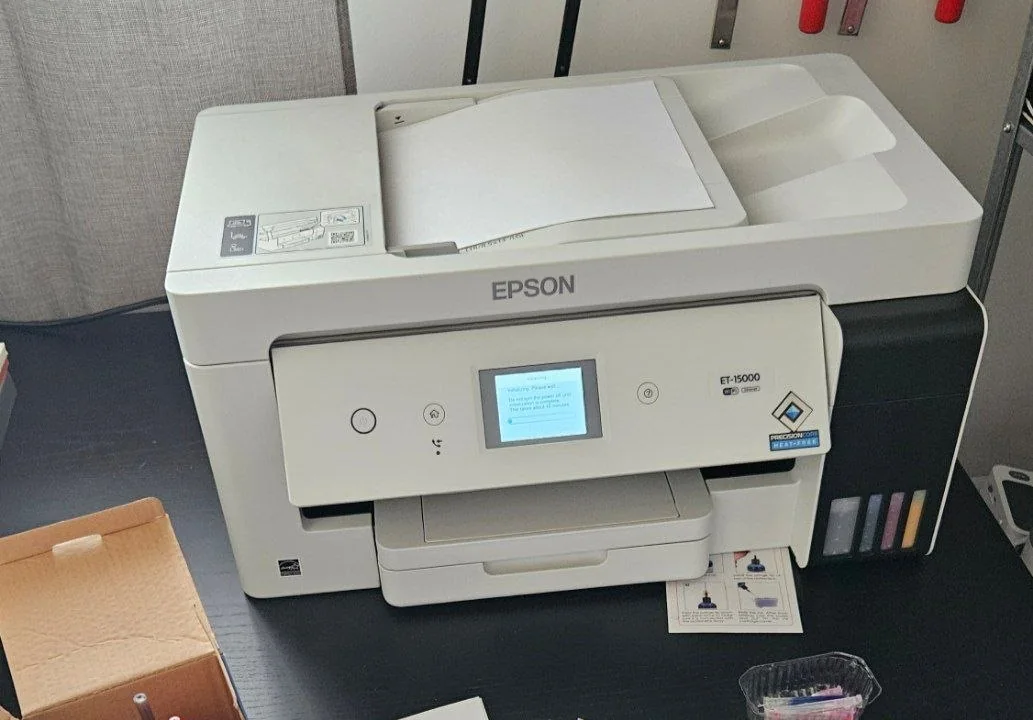
In Acrobat, use Actual size for templates and matched print-and-cut artwork. Turn off Fit/Shrink in both the application and driver. Keep borderless expansion off when alignment matters. Actual size can clip content outside your printer’s printable area: use larger paper or redesign the layout instead of silently shrinking it.
3. Test size and colour on the intended paper
Select the driver media type for your paper and make one test print. Measure a known width with a ruler. For display art, inspect dark areas, fine text and colours in the lighting where it will be used. If using a managed colour workflow, let either the application or driver manage colour according to your paper/profile instructions, avoiding conflicting adjustments.
Troubleshooting
- Print is too small: check Fit, shrink-to-printable-area and driver scaling.
- Edges clipped: compare page size with the printer’s printable area before changing the artwork scale.
Manufacturer documentation
Next steps and project ideas
Next: framing and finishing printed maps, or go back to the Learning Center.
Was this guide helpful?
More in Your software
Keep up with MyLaserTools.
Email me about new tools, product updates, tutorials, and occasional MyLaserTools offers. Unsubscribe at any time.
© 2026 MyLaserTools.com. All rights reserved.