
How to use MyLaserTools with LightBurn
Difficulty: Beginner. Time: about 5 minutes. Tested with LightBurn Pro 2.2 on Windows with a Ruida controller.
We draw our SVG files with LightBurn in mind. Cut, engrave, and score lines each come out in their own colour, and layered designs give every piece its own cut colour, so a three-layer ornament arrives in LightBurn as three layers you can set up one at a time.
There are two ways in. Inside LightBurn, the Web Tools menu opens MyLaserTools in LightBurn's own window, where every laser tool has a Download to LightBurn button. In your usual browser you download the file and import it, and you also get PNG and STL exports. This guide covers both. If you don't have LightBurn yet, LightBurn (affiliate link) comes with a 30-day free trial. Read why we recommend it.
What You'll Need
- LightBurn (affiliate link). We tested LightBurn Pro 2.2; versions without the Web Tools menu can still import our downloads.
- Most diode, CO2, and fiber lasers work with LightBurn, but some commercial machines use controllers it doesn't support. The free trial is the easy way to check yours.
- No MyLaserTools account for most generators. Map Designer exports and some photo tools ask you to sign in.
Step 1: Open My Laser Tools from the Web Tools menu
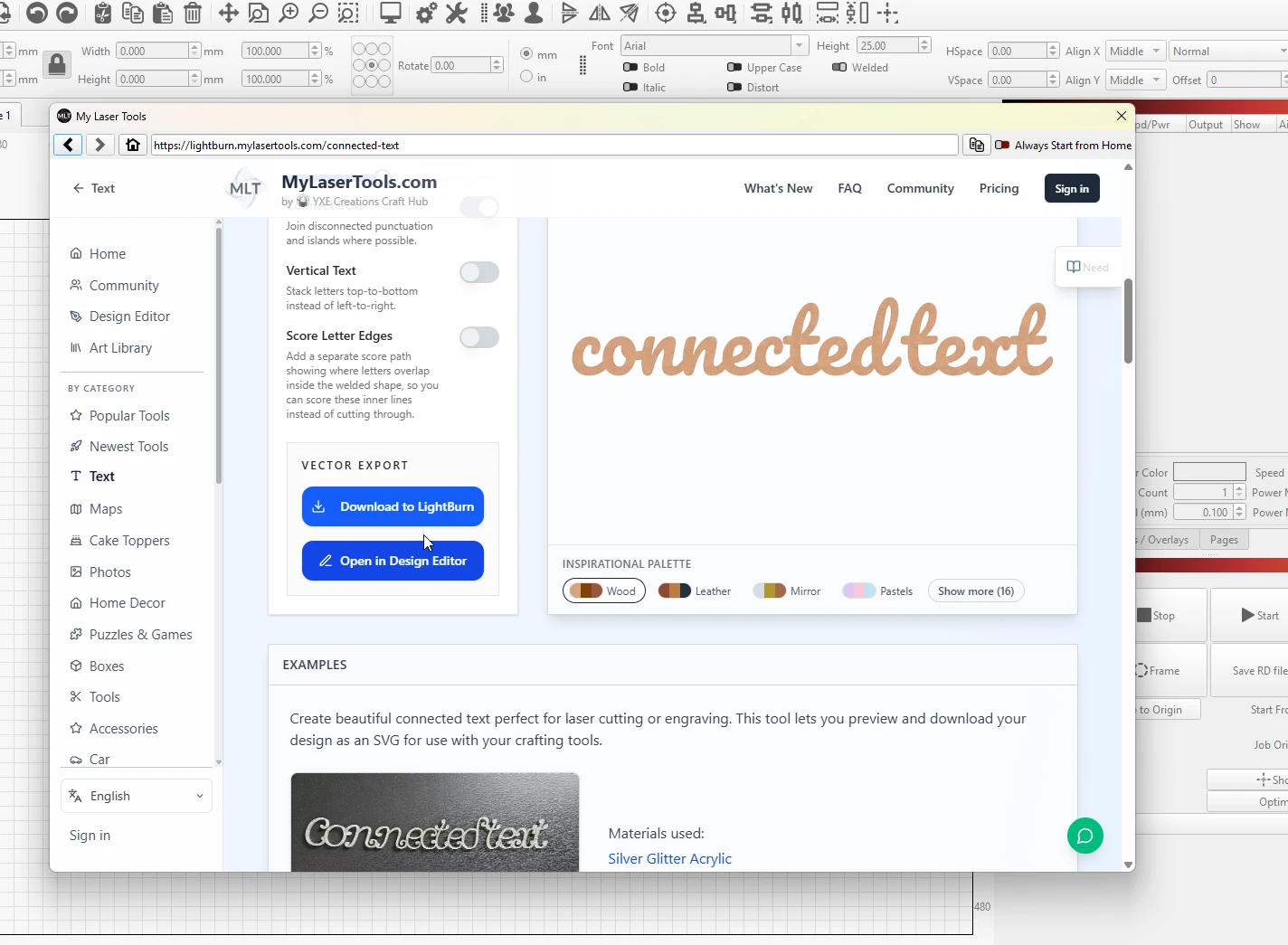
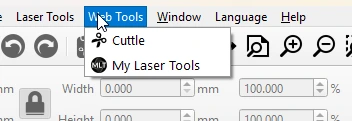
In LightBurn, open the Web Tools menu and choose My Laser Tools. The site opens in a LightBurn window at lightburn.mylasertools.com. This version lists the laser tools only and hides the 3D printing exports, because everything you make there goes straight into LightBurn.
Step 2: Design it and click Download to LightBurn
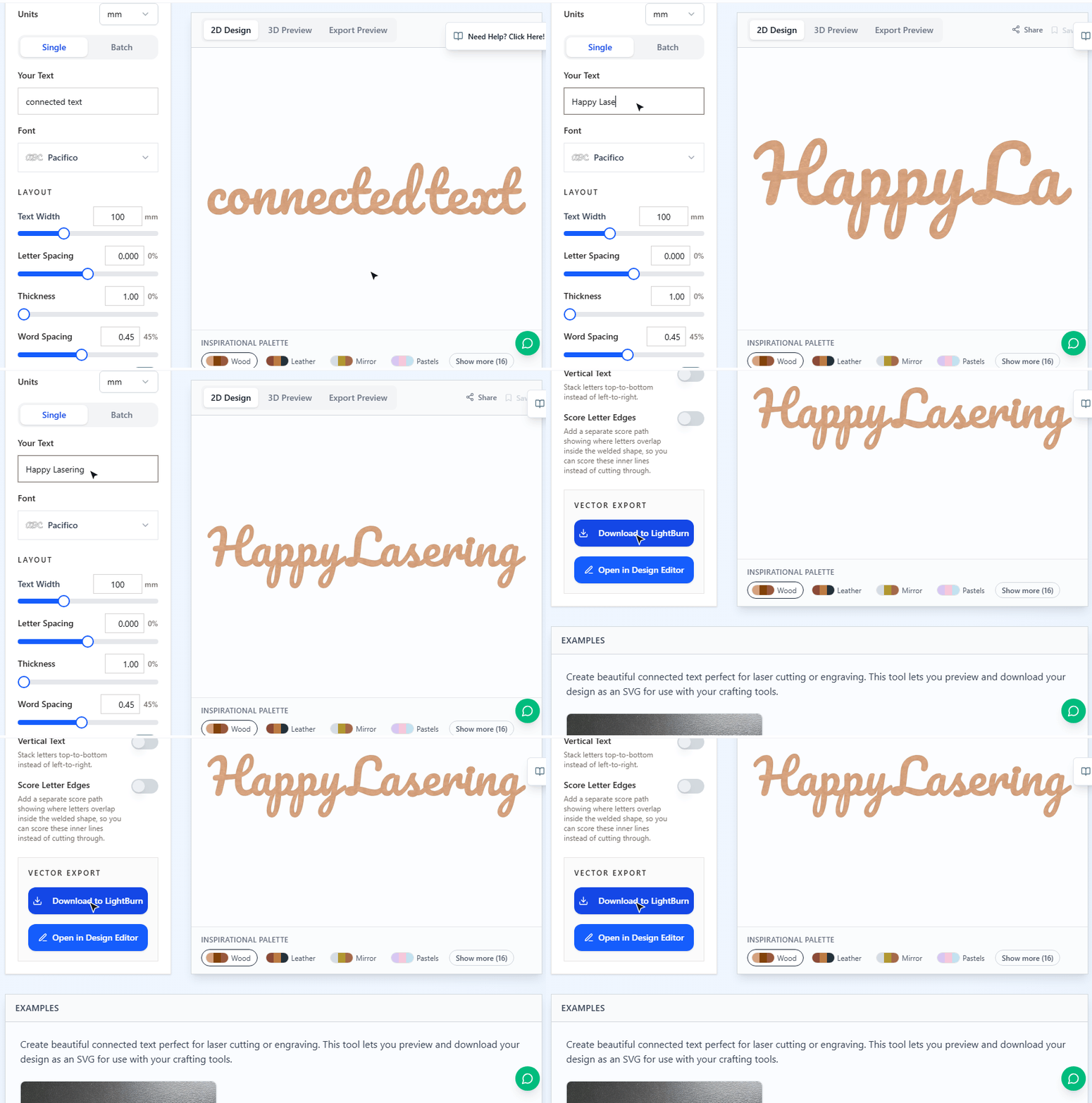
Pick a generator, type your text and set the size in millimetres or inches. The preview redraws as you type. When it looks right, click Download to LightBurn.
Step 3: Set up the colour layers
The design lands in your open LightBurn project at the size you set, and its colours turn into layers in the Cuts / Layers panel. The three-layer Christmas ornament below came in as layer 02 (red backplate), 09 (blue frame), and 11 (green name). Give each layer its own speed and power, or switch one off and cut the pieces in separate runs.
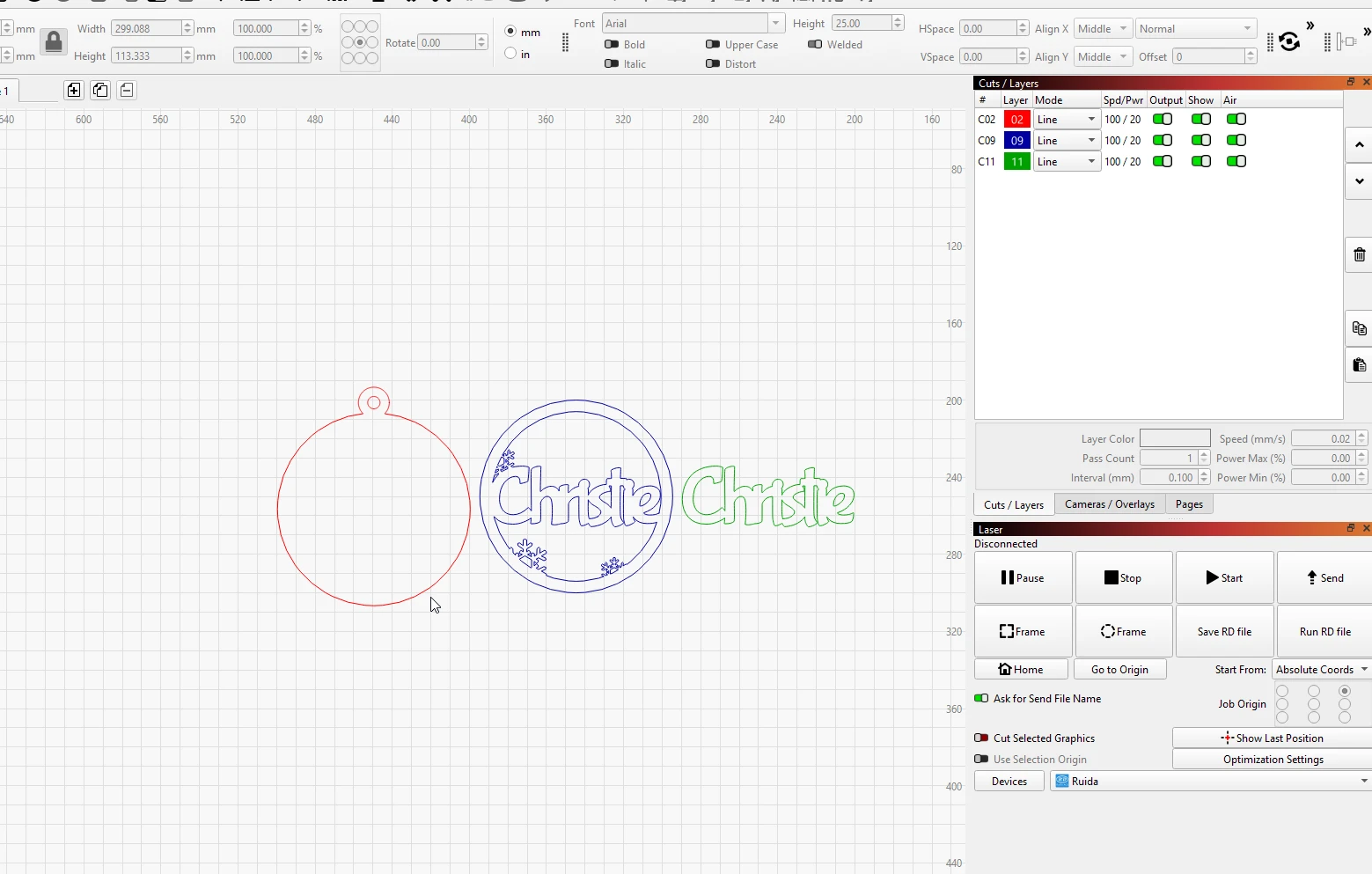
- Set the mode per layer: Line cuts or scores along the path, Fill engraves the area inside it.
- Leave the size alone. Our SVGs are measured in millimetres, so the width and height in LightBurn's toolbar already match what you chose on the website.
- Text arrives as outlines, so you don't need our fonts installed.
- Click Frame before the first cut to check the design sits on your material.
Using the website in your own browser
You don't have to open MyLaserTools from LightBurn. On mylasertools.com every laser tool has Download SVG. Import it in LightBurn with File > Import (Ctrl+I), or drag the file onto the canvas. The colours become layers the same way as with the Web Tools button.
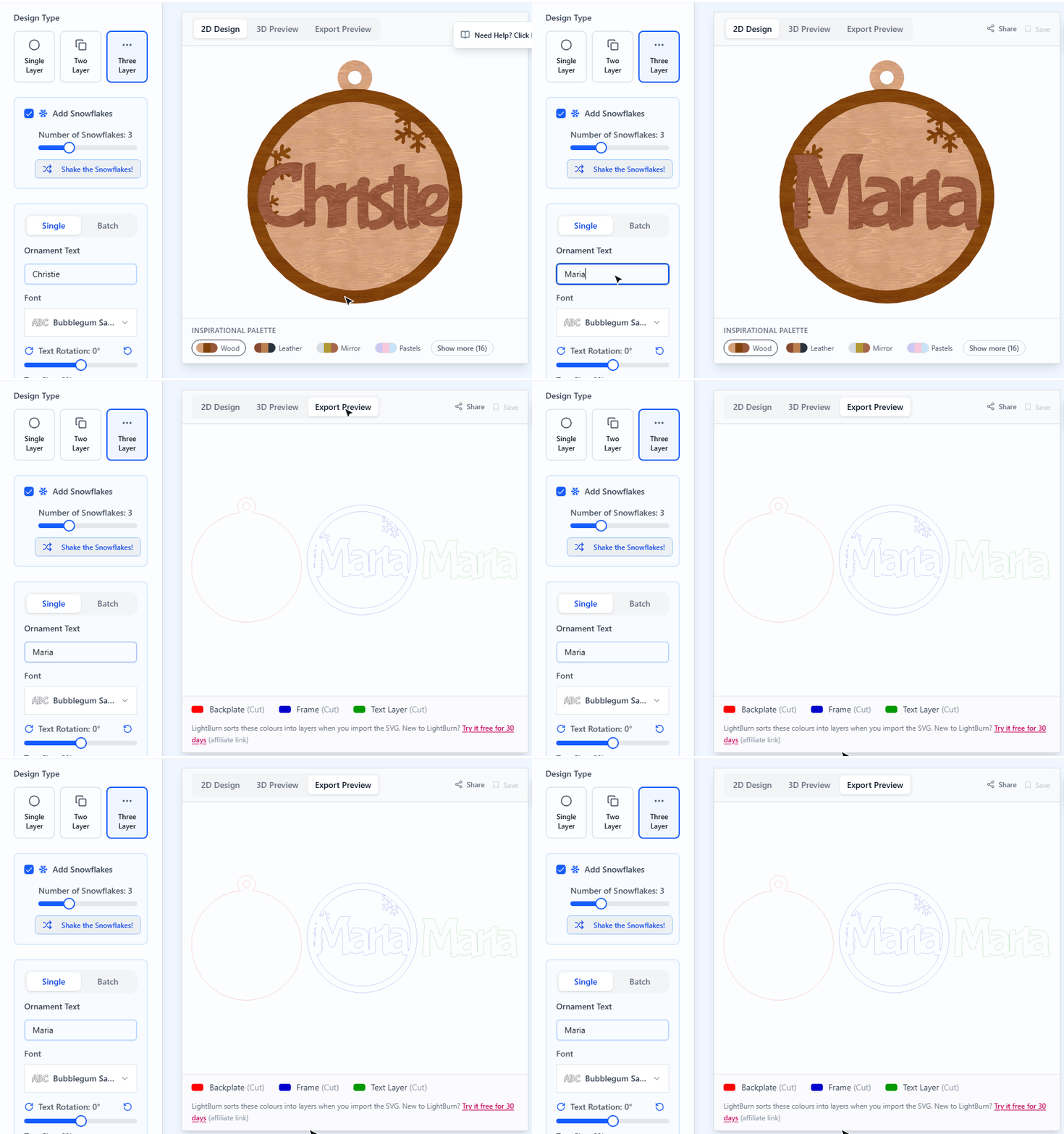
The browser version also has the downloads the Web Tools window leaves out:
- PNG from the photo and print tools, which LightBurn engraves as an image.
- STL from the Lithophane & Photo Relief Generator and from Map Designer depth and terrain presets such as Lake Depth Chart and Topography. LightBurn 2.2 opens these STL files for depth maps and lithophanes, and the same file goes to a 3D printer.
Changing the design before you cut
Open in Design Editor sends a design to the Design Editor, where you can add text or fit two designs on one sheet to save material. Its SVG export keeps the colour code: red for cuts, teal for scores, blue for engraving.
If something looks wrong
- Two pieces share a layer. LightBurn matches imported colours to the nearest colour in its palette, so two similar blues can end up on one layer. Select one piece and click a different colour in the layer bar to split them.
- A shape you expected to cut is engraving. Check that layer's mode in Cuts / Layers; Fill engraves, Line cuts.
- You can't find the Web Tools menu. Update LightBurn, or use the website in your browser and import the SVG.
Make It Yours
- Christmas Ornament Generator: the three-layer bauble from the screenshots.
- Connected Text: a script name cut as one piece.
- Box Generator: finger-jointed boxes sized to your material thickness.
- Earrings Generator: pairs laid out together, one cut colour per layer.
- Map Designer: layered city and lake maps where each layer gets its own colour.
Keep up with MyLaserTools.
Email me about new tools, product updates, tutorials, and occasional MyLaserTools offers. Unsubscribe at any time.
© 2026 MyLaserTools.com. All rights reserved.