

Cut and assemble layered SVG projects in LightBurn or xTool Studio
A physical layer is one piece in the finished stack. A software colour layer is a group of objects sharing processing settings. Several physical pieces can share one cutting operation; one piece can need both engraving and cutting.
On this page (8)
What you need
- The layered SVG export, the intended stack order and measured material thickness.
- LightBurn or xTool Studio, suitable material and your assembly adhesive or hardware.
1. Check scale and identify every piece
Import the SVG using the LightBurn guide or xTool guide. Compare a known finished width. Keep the scale consistent across all physical layers; never fit each layer independently to the sheet. Identify front, middle and back pieces before nesting.
2. Assign operations and run a fit test
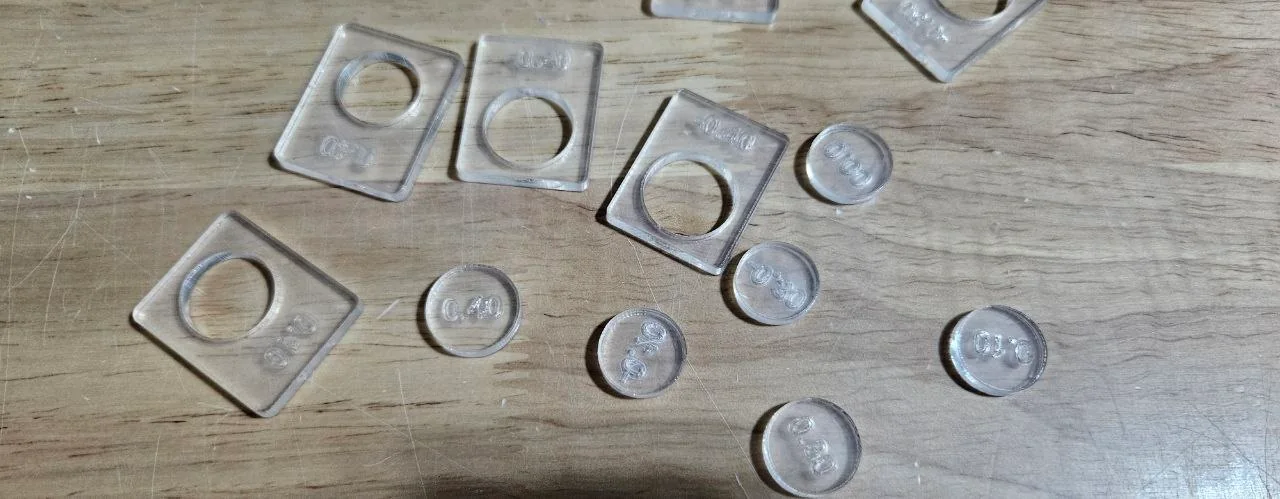
Inspect the actual paths, then assign cut, score and engraving operations. Use settings tested for each material and thickness. Keep interior holes and delicate details ahead of the final outer cut when planning the operation order. For slots, tabs or finger joints, cut a small fit sample; measured thickness and kerf affect assembly.
3. Label, dry-stack and finish
Keep a stack-order reference beside the machine. Frame each sheet, inspect the preview and cut the material groups separately as needed. Dry-stack the pieces before gluing, check orientation and hanging holes, and finish surfaces at the stage appropriate for your chosen coating and adhesive.
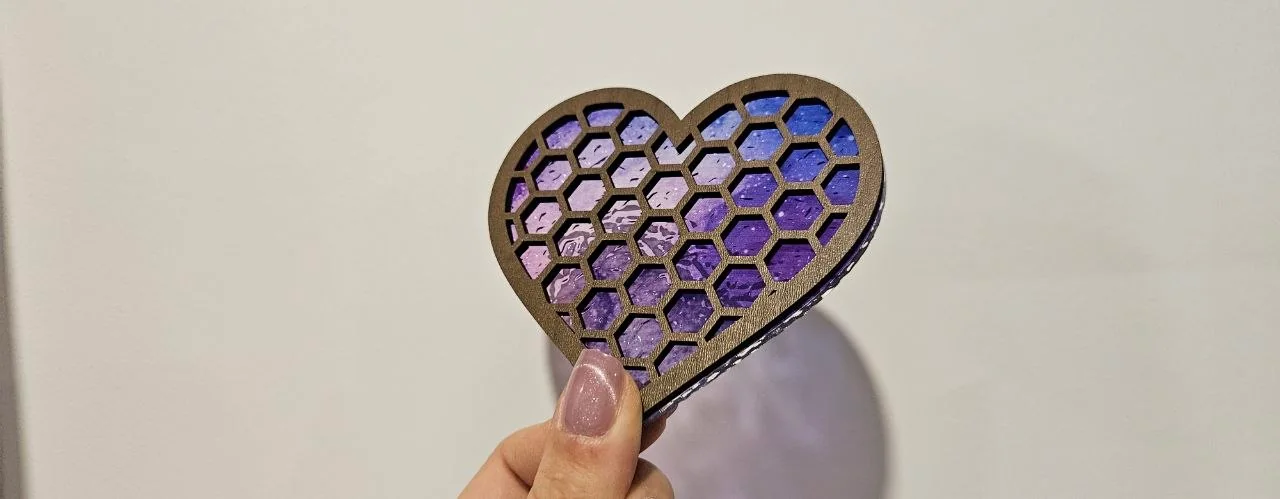
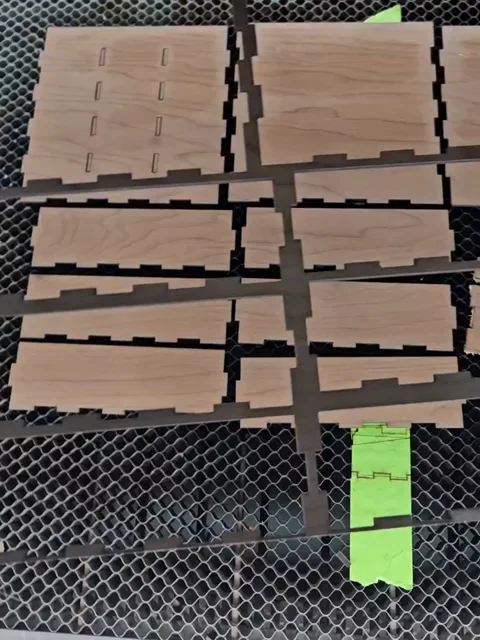
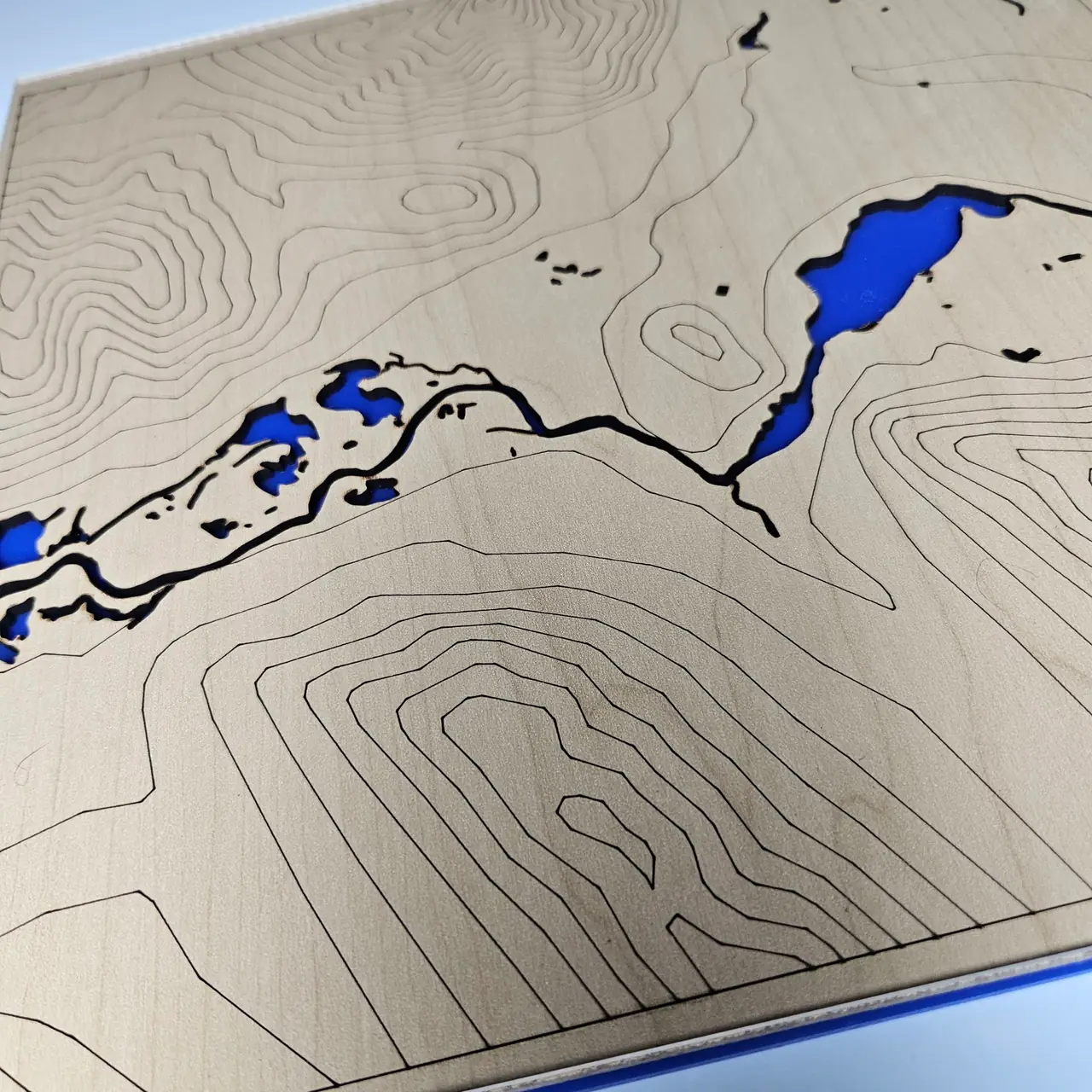
Score lines and cut openings are different operations
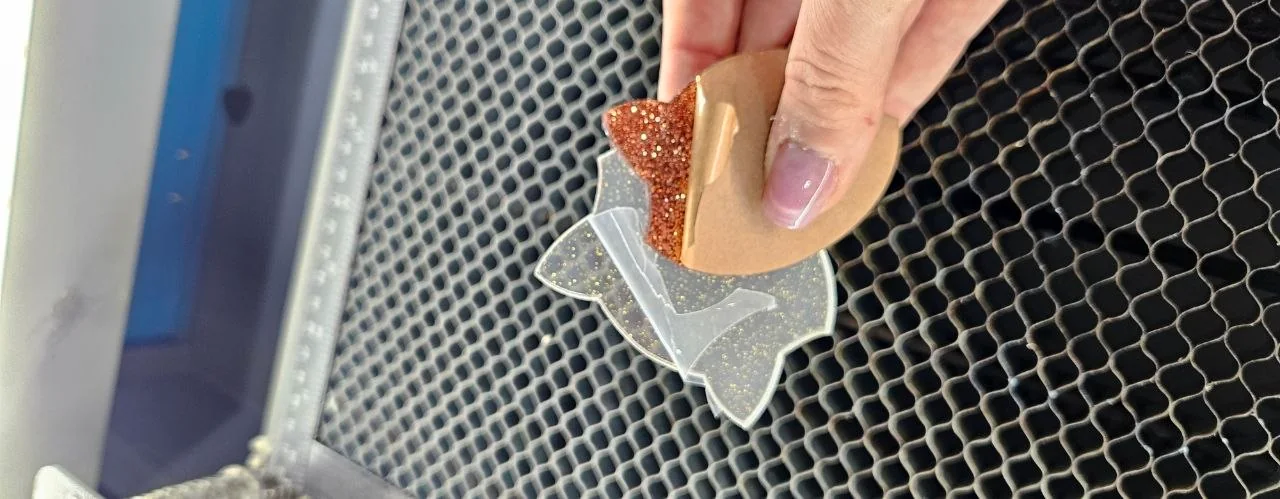
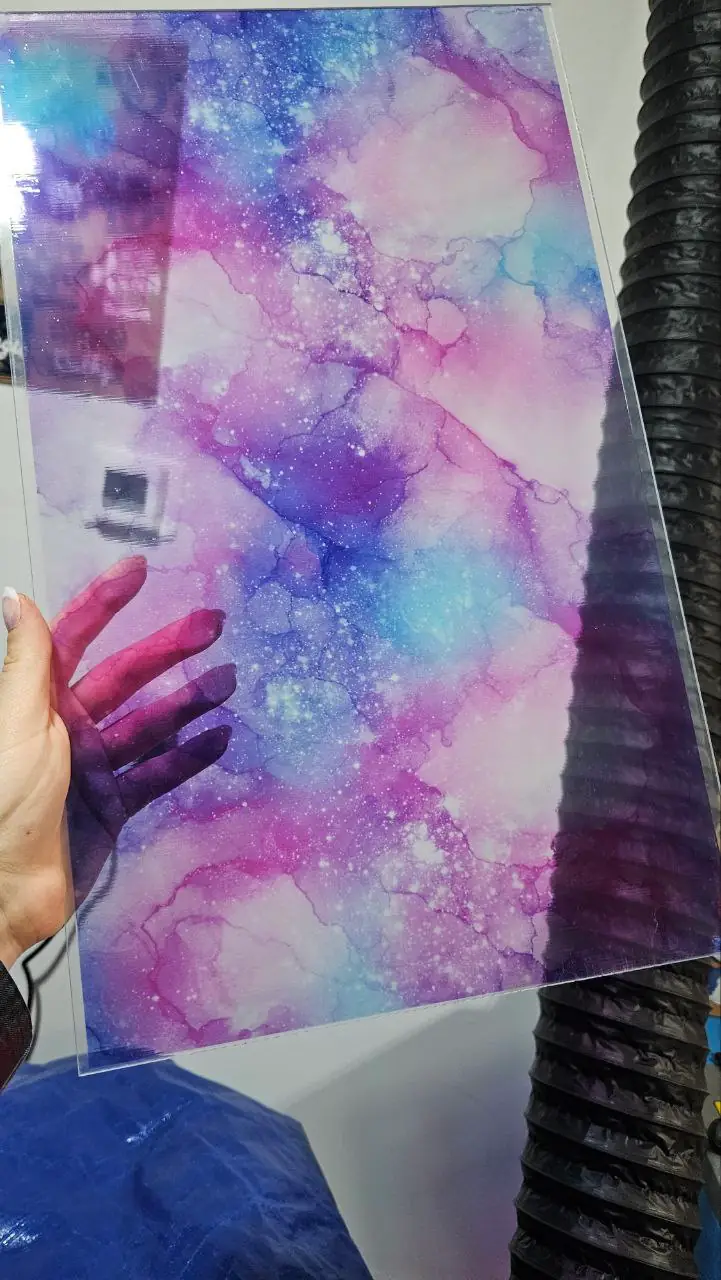
Transparent print with a separate cut overlay
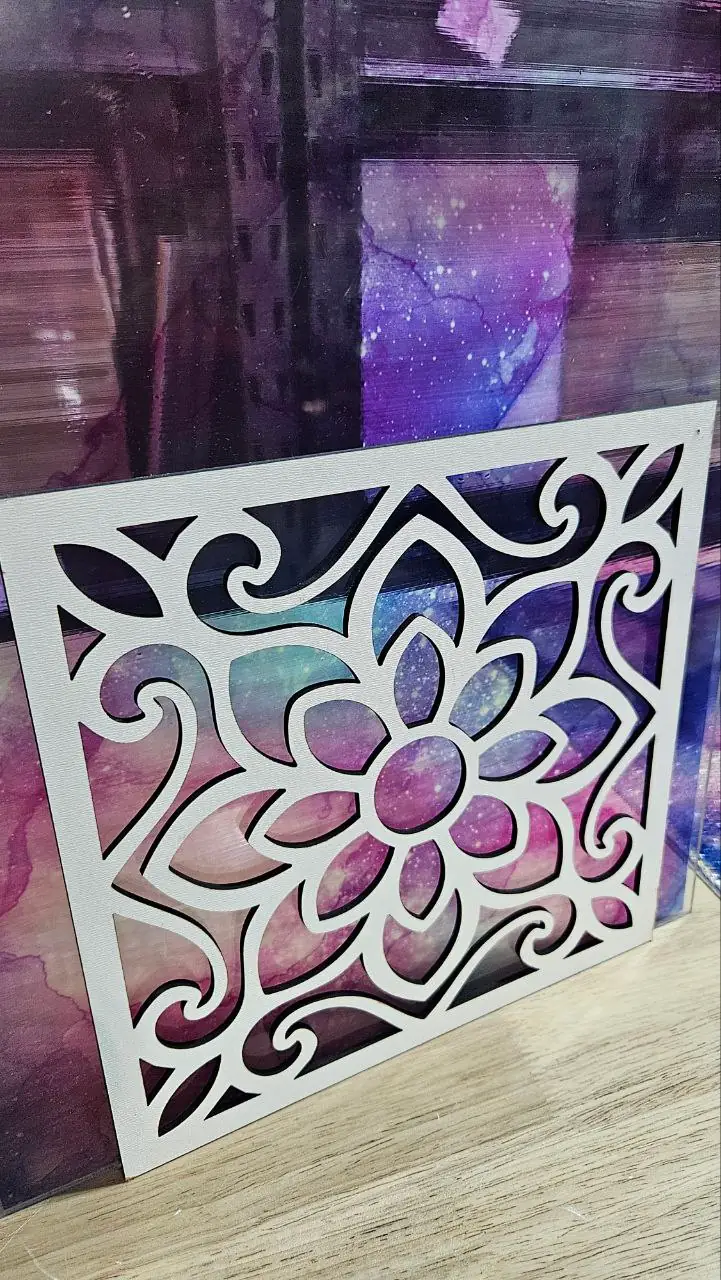
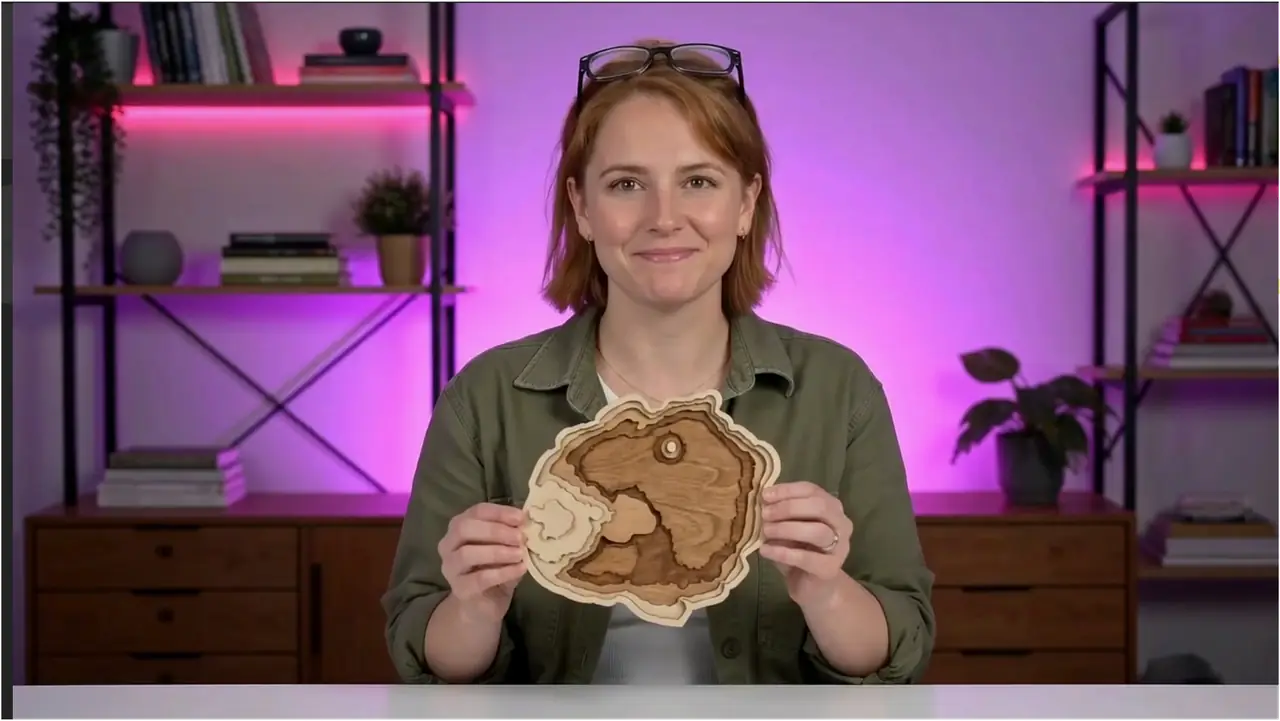
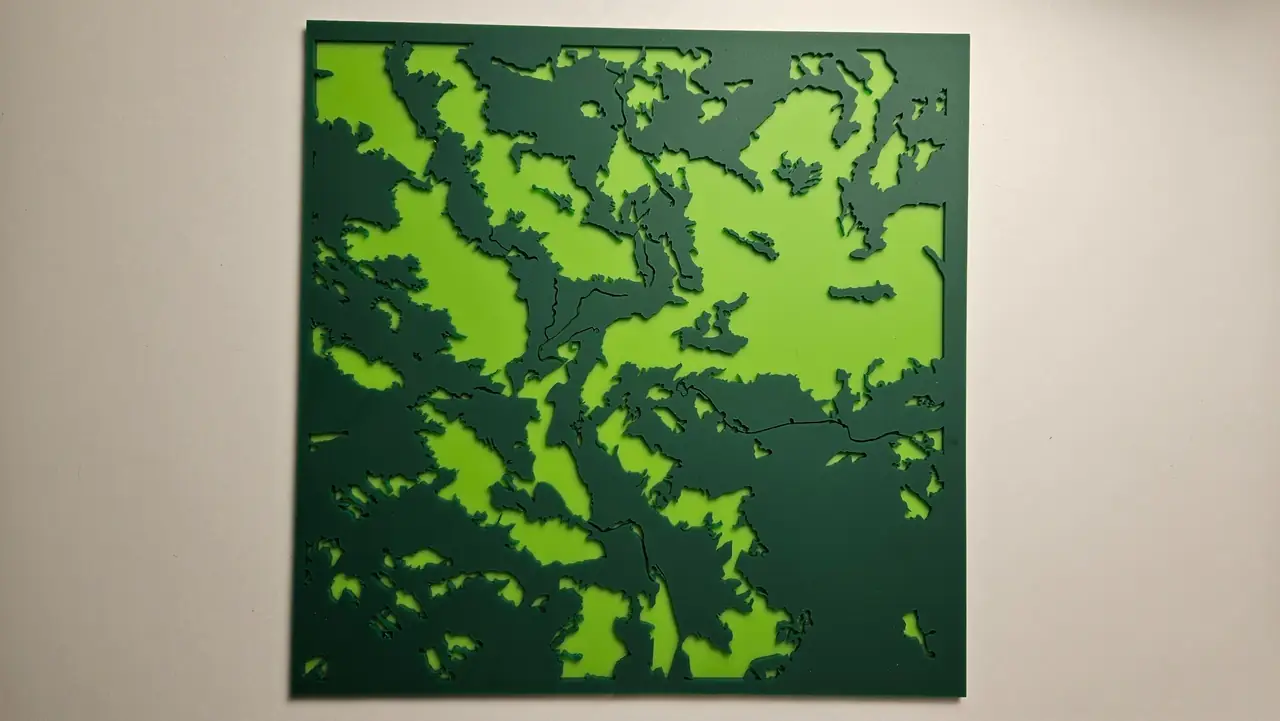
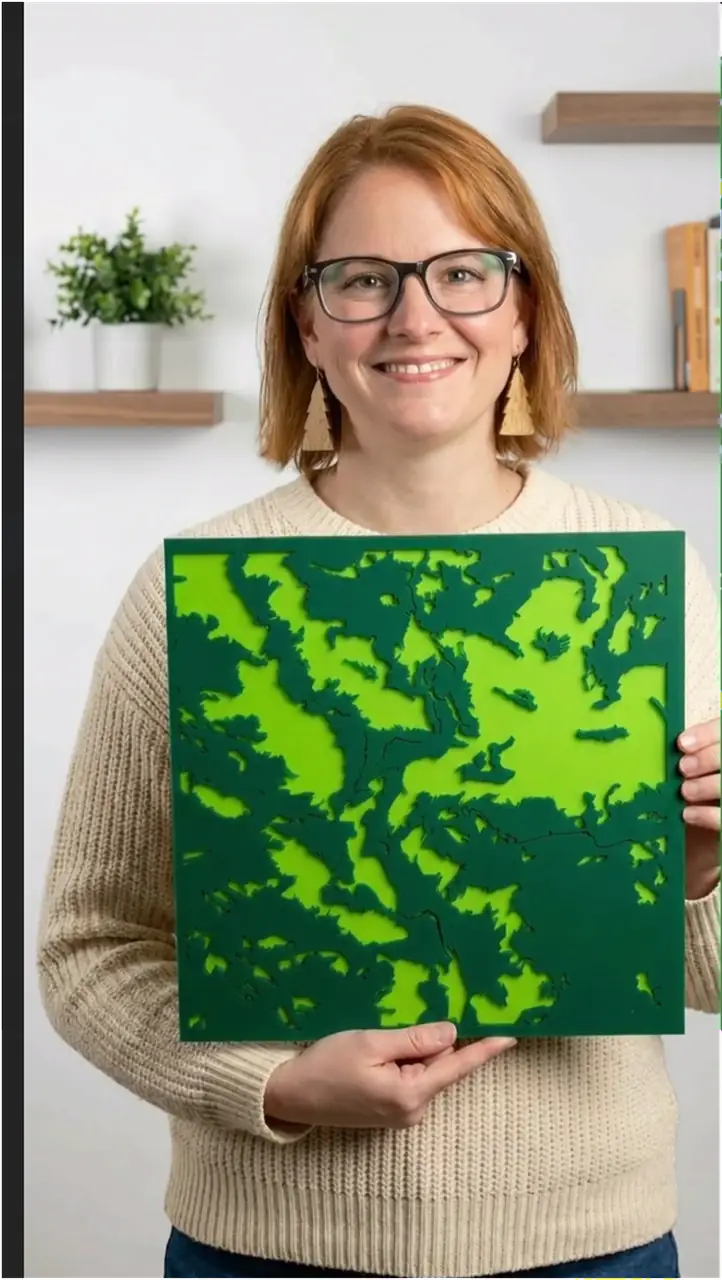
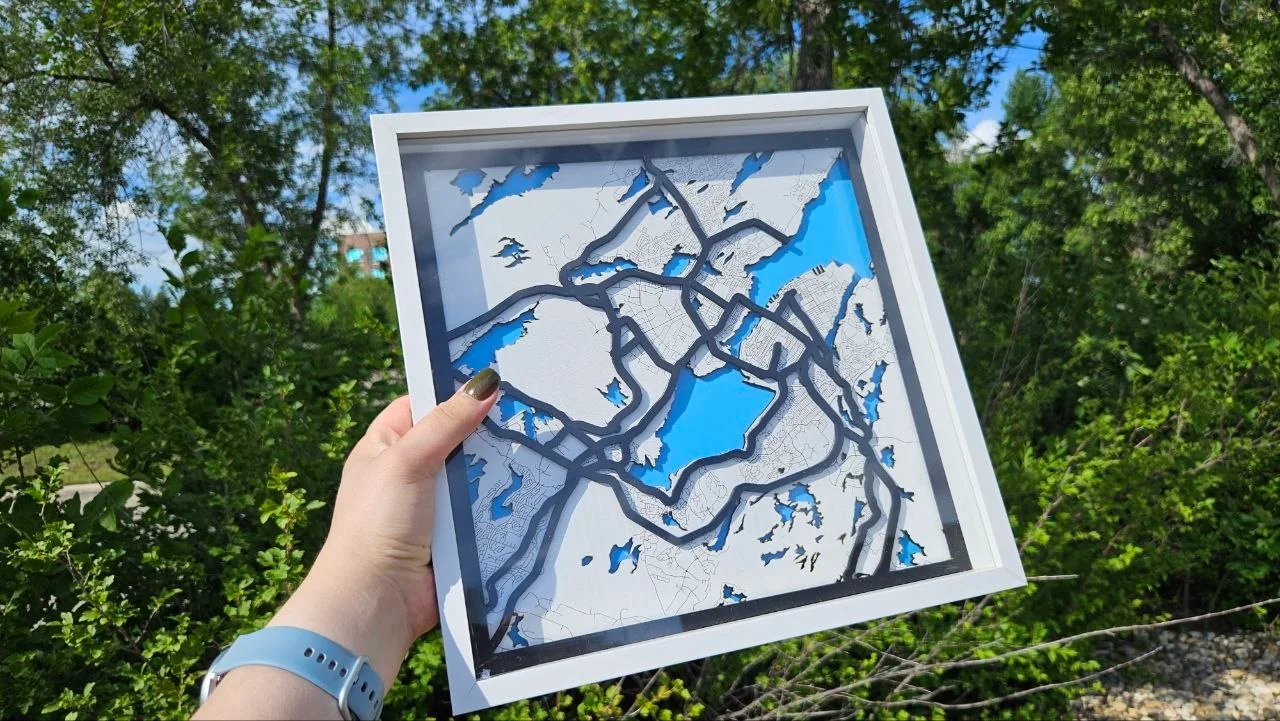
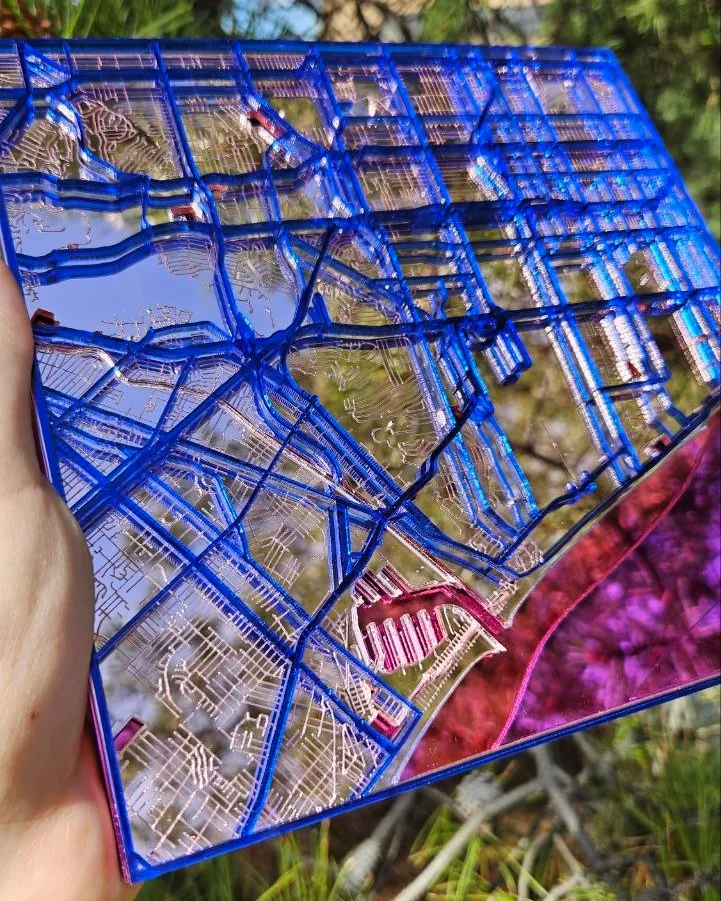
Layered maps: plan the finished stack
Troubleshooting
- The layers do not line up: one sheet was scaled or rotated. Cut every layer from the same export, at the same size.
- Too many cuts: there are duplicate paths, or a reference layer still has Output on.
Manufacturer documentation
Next steps and project ideas
Next: assembling layered maps, or go back to the Learning Center.
Was this guide helpful?
More in Laser techniques
Keep up with MyLaserTools.
Email me about new tools, product updates, tutorials, and occasional MyLaserTools offers. Unsubscribe at any time.
© 2026 MyLaserTools.com. All rights reserved.