
How MyLaserTools works
Reading time: 5 minutes. No account needed to start.
MyLaserTools helps you design files in your browser. Choose a tool, change the design and download a format your production software accepts: SVG for vector work, 3MF or STL for slicing a 3D model, and PDF or PNG for printing. You prepare the machine settings in your laser, cutter or slicer software.
Most people start with a tool, so this page starts there too.
On this page (10)
- 1. Open a tool
- 2. Change it and watch the preview
- 3. Download the file for your machine
- Finish a design by hand in the Design Editor
- Make a map in the Map Designer
- Use art from the Art Library
- Write a design as code with KerfScript
- Share and borrow designs in the community
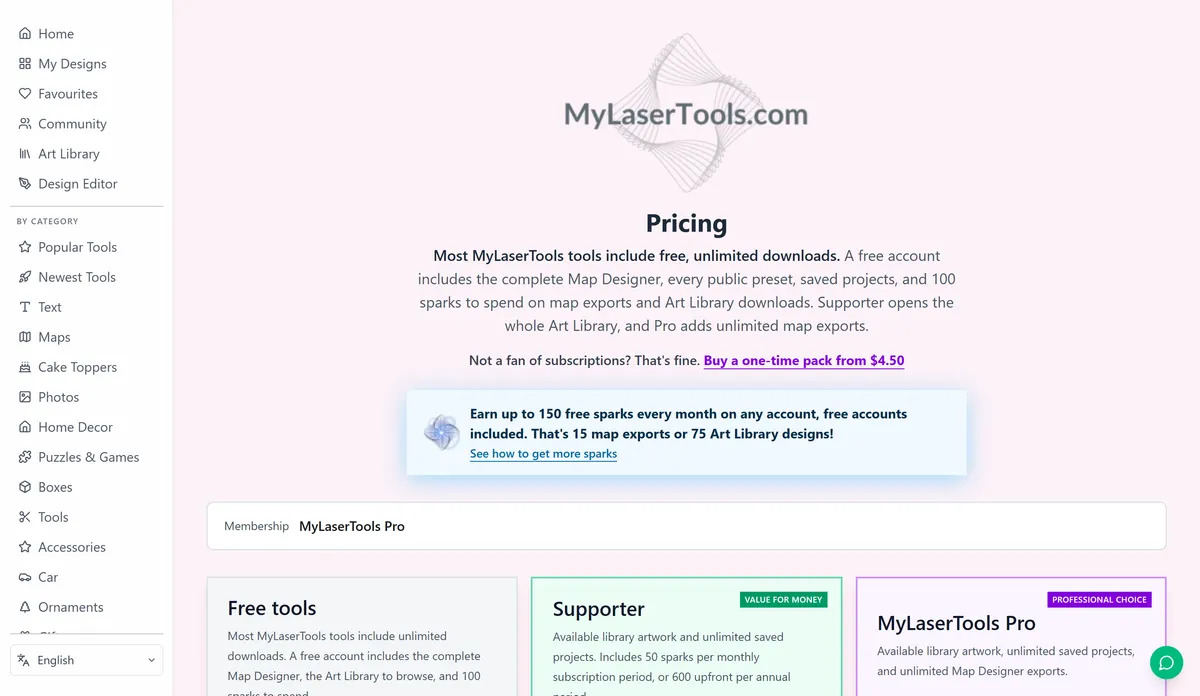
- What is free
- Where your designs are saved
1. Open a tool
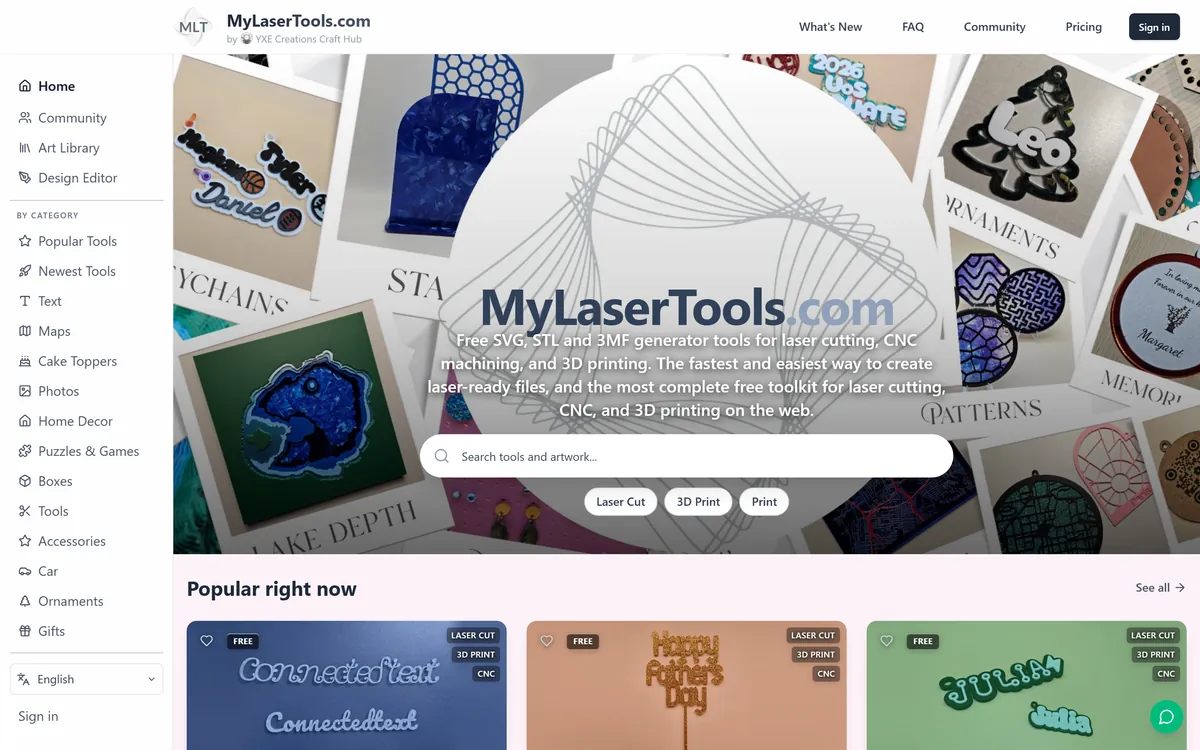
Each tool makes one kind of thing: a name keychain, a finger-jointed box, a cake topper, an ornament with a photo in it. Pick a category on the left of the home page, or type what you want to make into the search box. There are more than 200 tools.
2. Change it and watch the preview
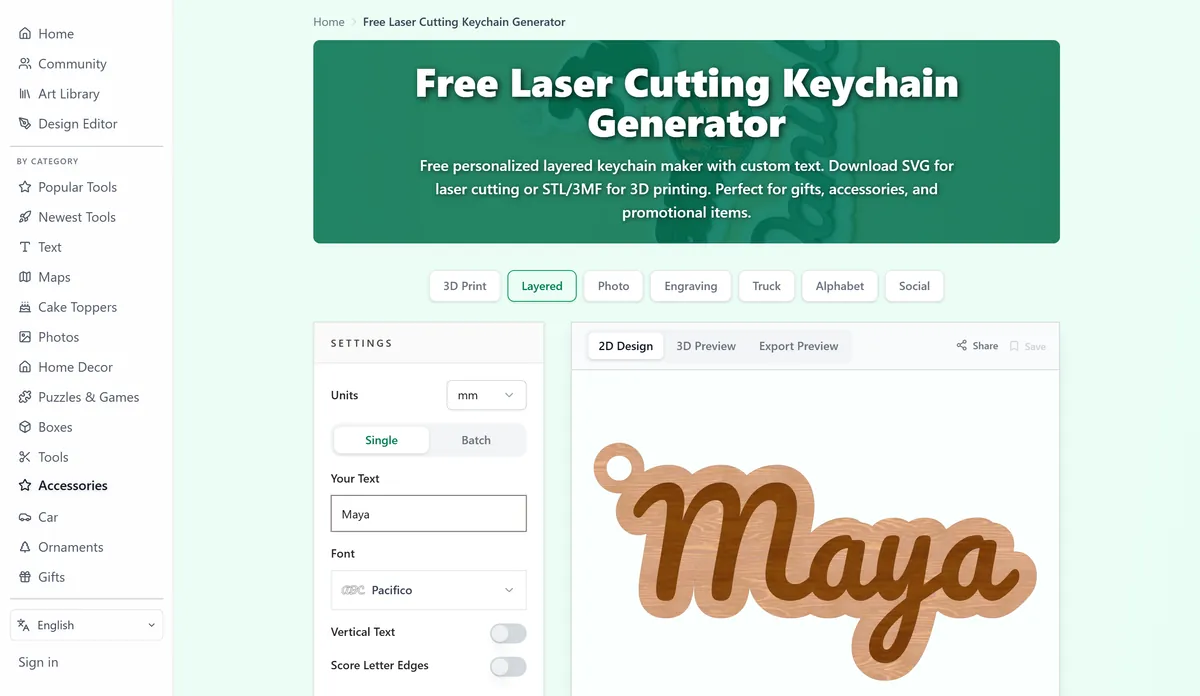
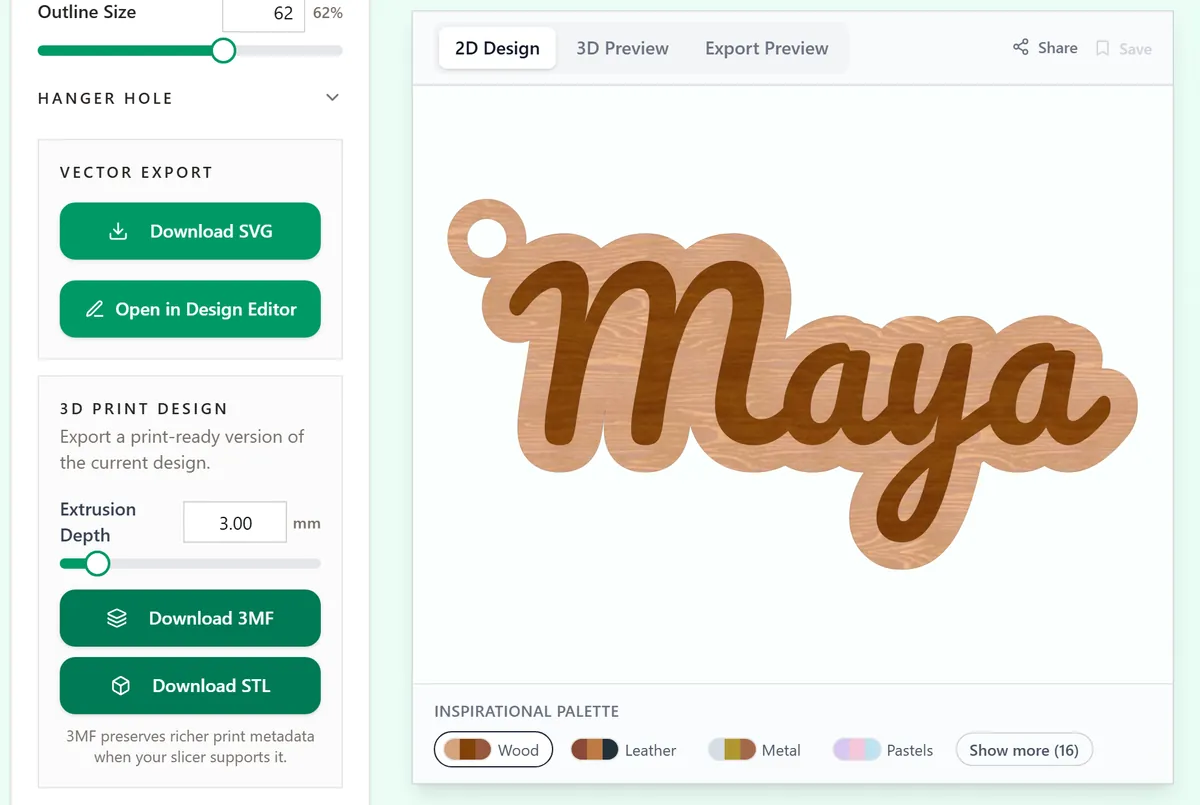
In the Keychain Generator shown below, the settings sit beside the preview. Type a name, choose a font and set a width. 2D Design shows the design and Export Preview helps you inspect its paths and layers. Some tools also offer an assembled 3D Preview. On a narrow screen, the settings and preview may stack vertically.
3. Download the file for your machine
The download buttons sit under the settings. Download SVG is for lasers, Cricut and Silhouette. Download 3MF and Download STL are for 3D printers; 3MF keeps each colour as its own part. Downloads from the tools are free and unlimited, with no watermark and no account.
Not sure which one you need? Which file to download has a short list by machine.
Finish a design by hand in the Design Editor
When a tool gets you most of the way, click Open in Design Editor and do the rest yourself: move a letter, add a date underneath, weld two shapes, or lay twelve keychains out on one sheet. You can also start from a blank sheet, a blank shape or a piece from the Art Library. Signed in, projects save to My Designs.
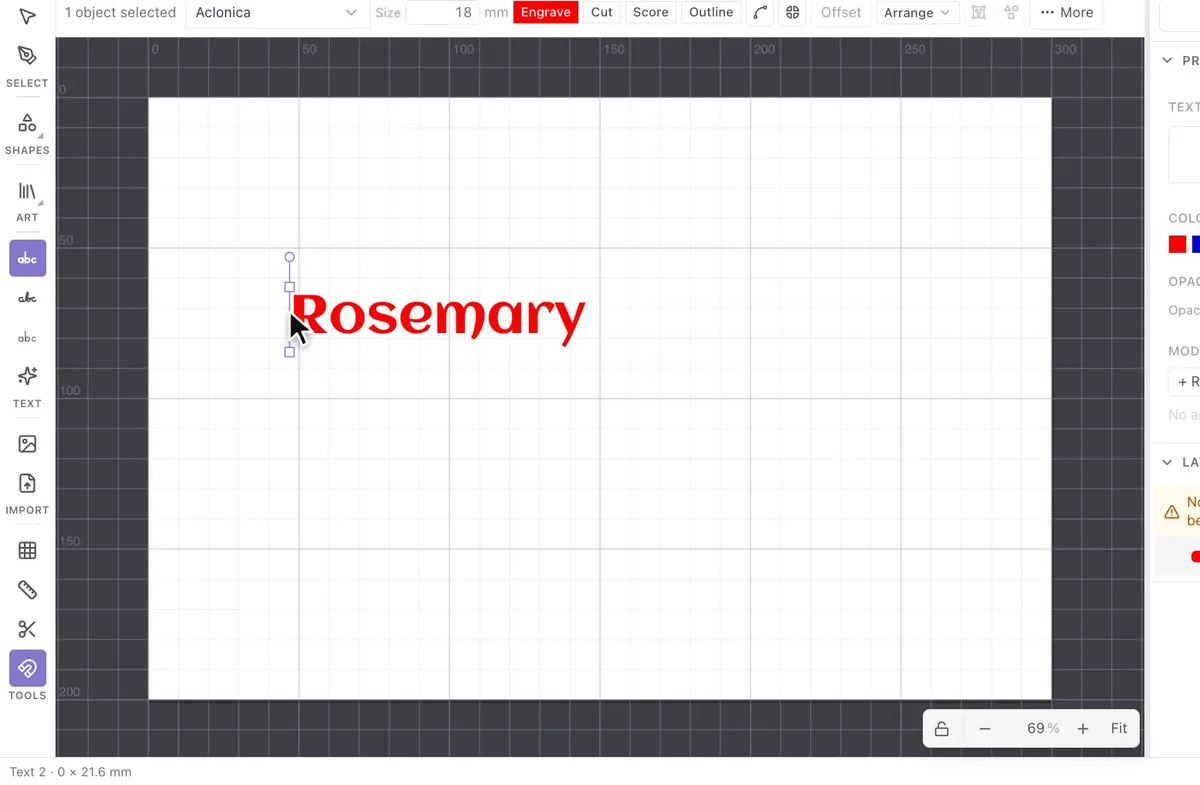
The Design Editor guide covers every panel.
Make a map in the Map Designer
Search for a place, pick a style, and the Map Designer draws it as layers: streets, water, parks, buildings, terrain or lake depths. Each layer becomes a sheet of wood or acrylic, or a colour in a 3D print. It needs a free account. An export costs 10 sparks and a new account starts with 100, so your first ten maps cost nothing.
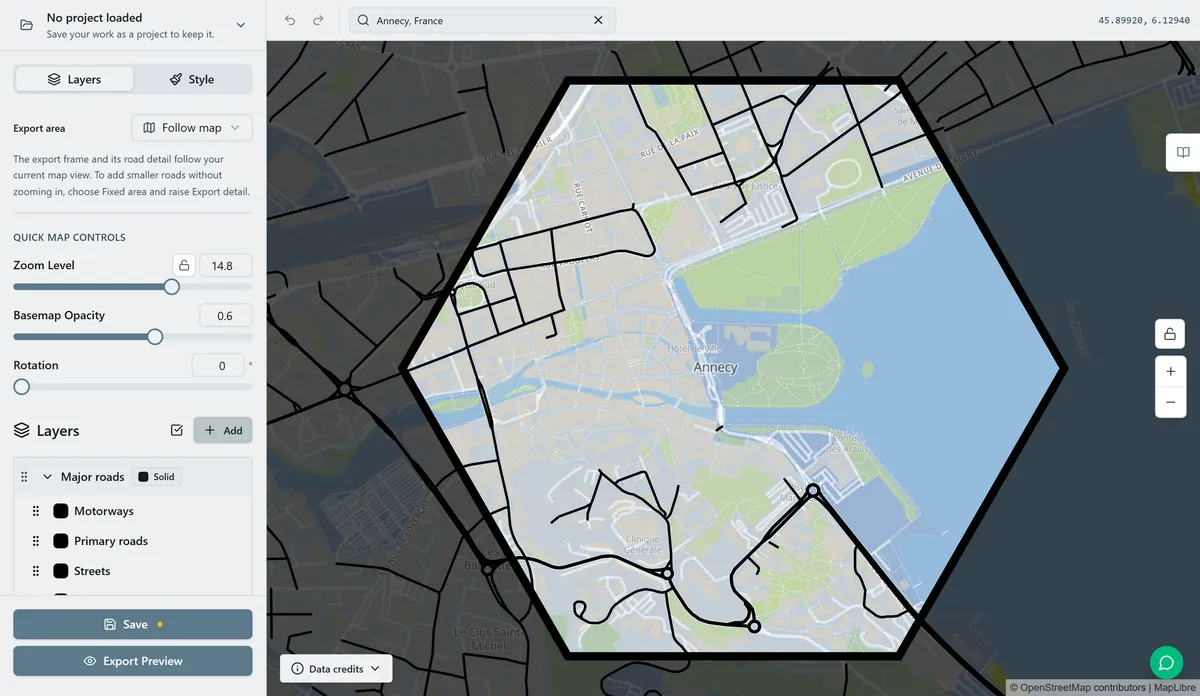
Start with your first map, then browse the map styles.
Use art from the Art Library
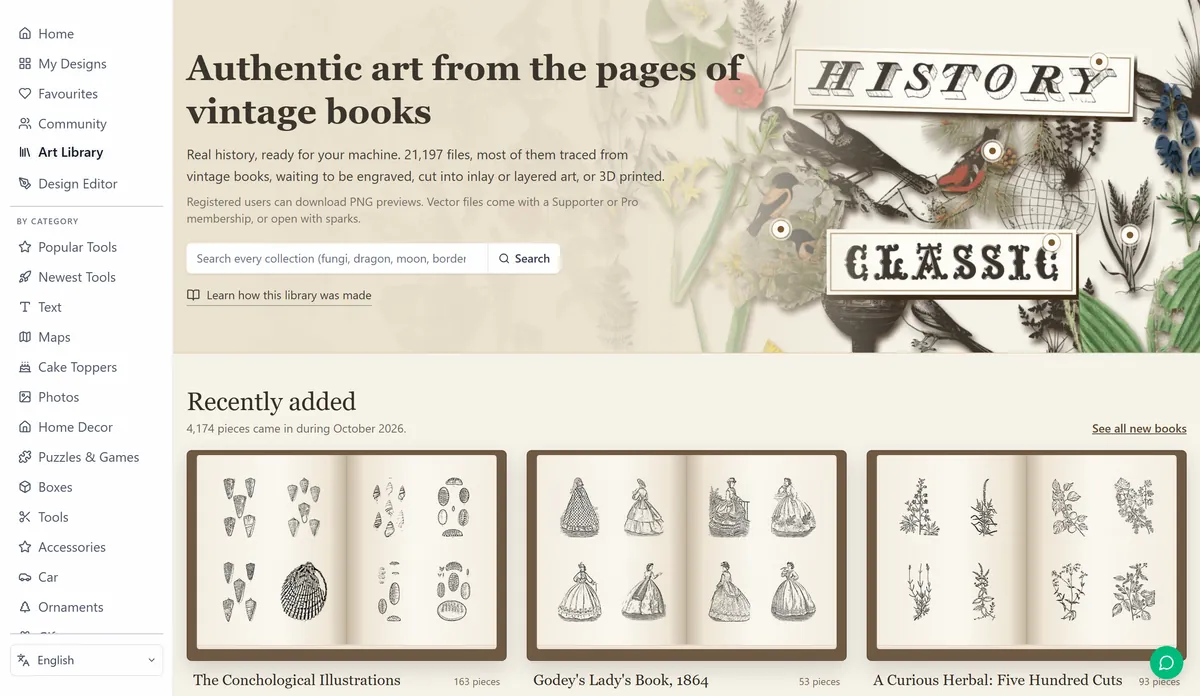
The Art Library has more than 20,000 illustrations, most of them traced from old books: flowers, animals, ornament, alphabets, borders. Anyone can browse it. Pieces we drew ourselves download with a free account. The rest cost 2 sparks each, or come with a Supporter or Pro membership. Open any piece in the Design Editor to put it on a tag or a sign.
Write a design as code with KerfScript
KerfScript is a small language for laser cutting. You write that a box is 120 mm wide with 3 mm finger joints, and the KerfScript Playground draws it, turns the numbers into sliders and gives you an SVG or DXF. Publish it from the Workbench and other people get the sliders without ever seeing the code.
Get started with KerfScript takes about 15 minutes, and you do not need to know how to program.
Share and borrow designs in the community
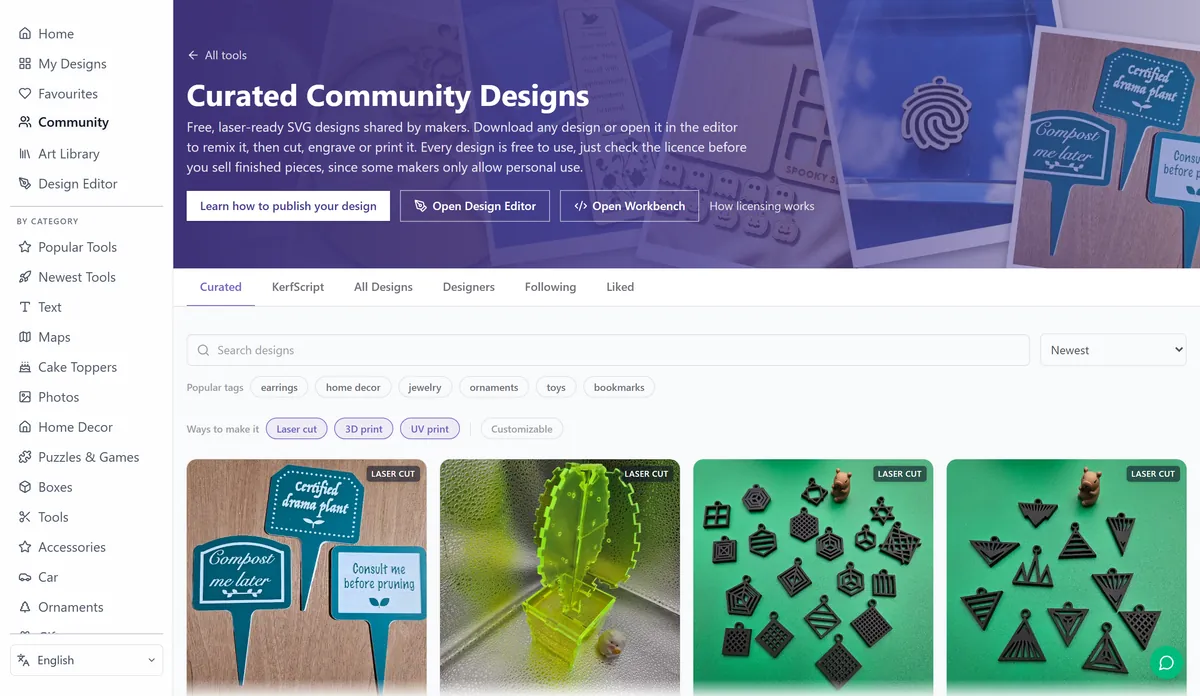
Makers publish designs with photos of the real piece and the settings they used. Download one as it is, or open it in the Design Editor and change it. Publishing a design, adding a photo of the real thing and posting a photo of something you made from someone else's design all earn sparks.
What is free
- Without an account: every tool, with unlimited downloads and no watermark.
- With a free account: My Designs, the full Map Designer, the Art Library pieces we drew ourselves and 100 sparks to start.
- Sparks pay for map exports (10 each) and paid Art Library pieces (2 each). You earn them by sharing, or buy a pack.
- Supporter includes the paid Art Library. Pro adds unlimited map exports on top.
You can sell physical items made with the site tools, subject to the artwork and data licenses that apply to your project. Community designs and imported artwork may have their own terms. Plans and sparks explains access and digital-file sales.
Where your designs are saved
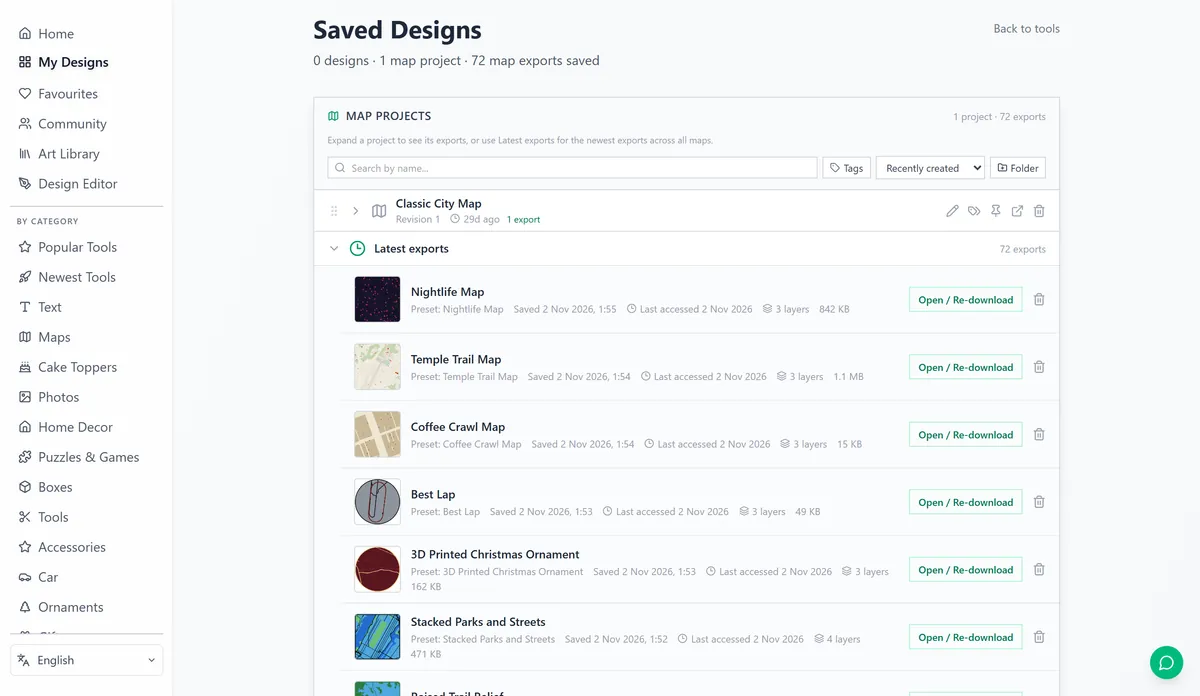
Signed in, click Save above a tool's preview and the design goes to My Designs, together with your Design Editor projects, your maps and every map export you paid for. A saved map export downloads again without spending sparks.
The photo tools process images in your browser. Saving or publishing a project can upload its design content and preview so you can reopen or share it. Keep private photos out of projects you publish to the community.
Next steps and project ideas
Was this guide helpful?
More in Getting started
Keep up with MyLaserTools.
Email me about new tools, product updates, tutorials, and occasional MyLaserTools offers. Unsubscribe at any time.
© 2026 MyLaserTools.com. All rights reserved.