

Edit MyLaserTools SVG files in Inkscape or Adobe Illustrator
Use a vector editor when you need to add text, arrange pieces or prepare a print master. For quick changes, the browser-based Design Editor is another option. A coloured fill is not a machine operation until you assign it in the production software.
On this page (5)
What you need
- Inkscape or Adobe Illustrator and an untouched copy of the exported SVG.
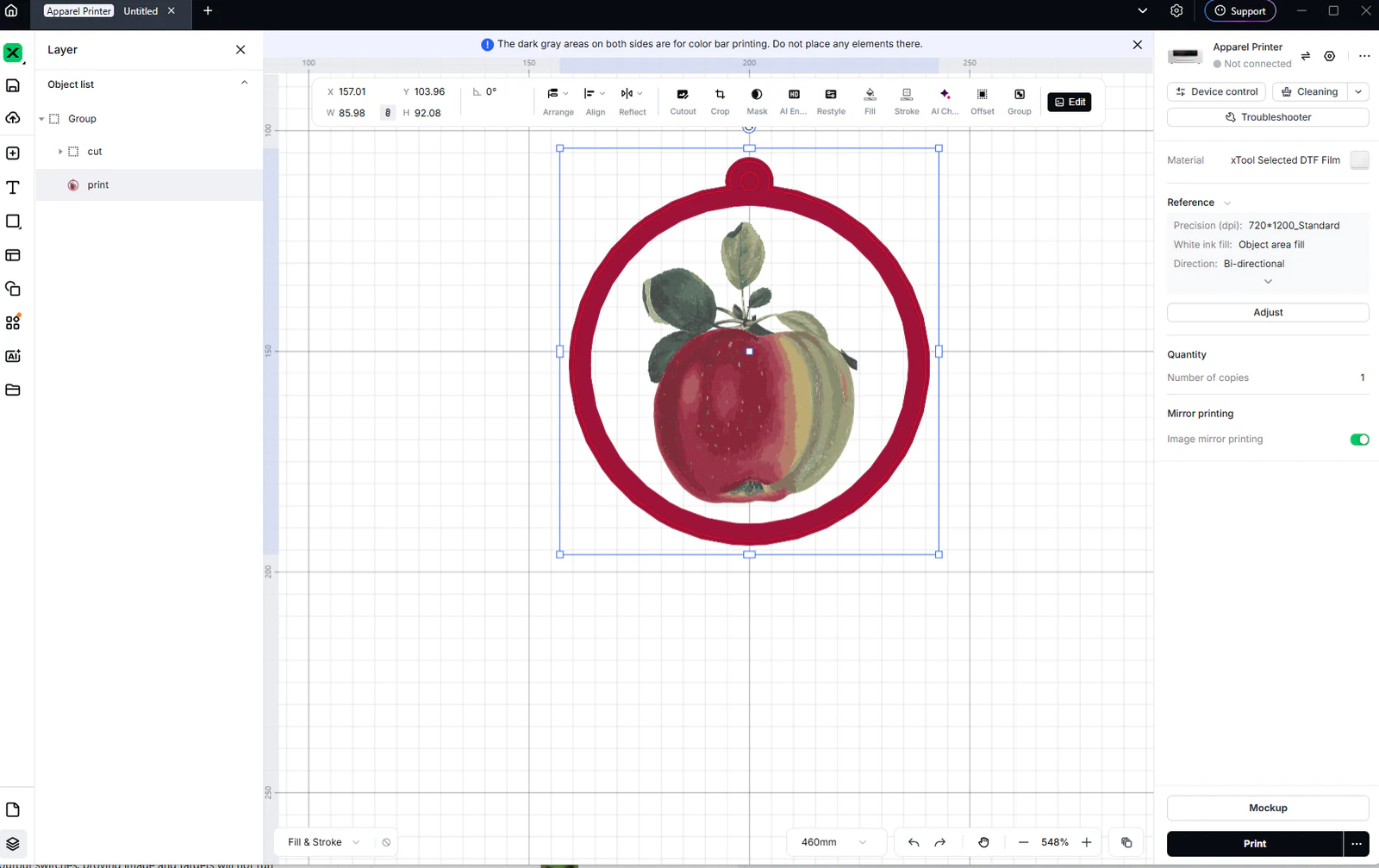
- The intended piece dimensions and any matching print artwork.
1. Open the SVG and measure a known piece
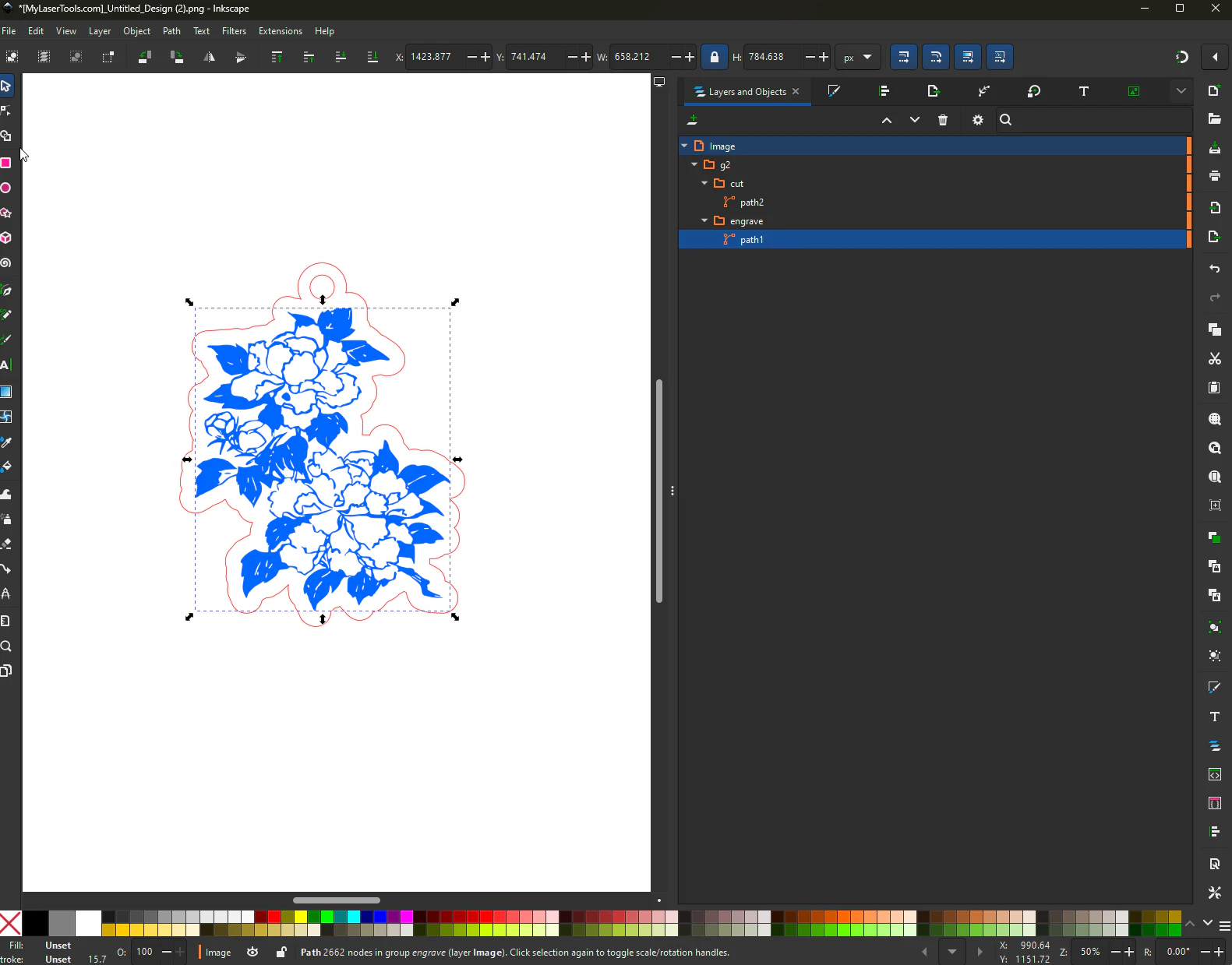
Open the file as a document. In Inkscape, inspect Document Properties and the selection width; in Illustrator inspect the artboard and Transform dimensions. Use millimetres and compare a known contour with MyLaserTools. Keep page margins when the SVG is paired with a print file.
2. Make edits without changing the manufacturing geometry
Keep each physical piece separate. Convert newly added text to paths before handoff: Path → Object to Path in Inkscape or Type → Create Outlines in Illustrator. Embed linked images for a self-contained print layout. Keep cut paths as clean vectors; avoid shadows, filters or rasterising the entire design.
3. Export a copy and verify the receiving application
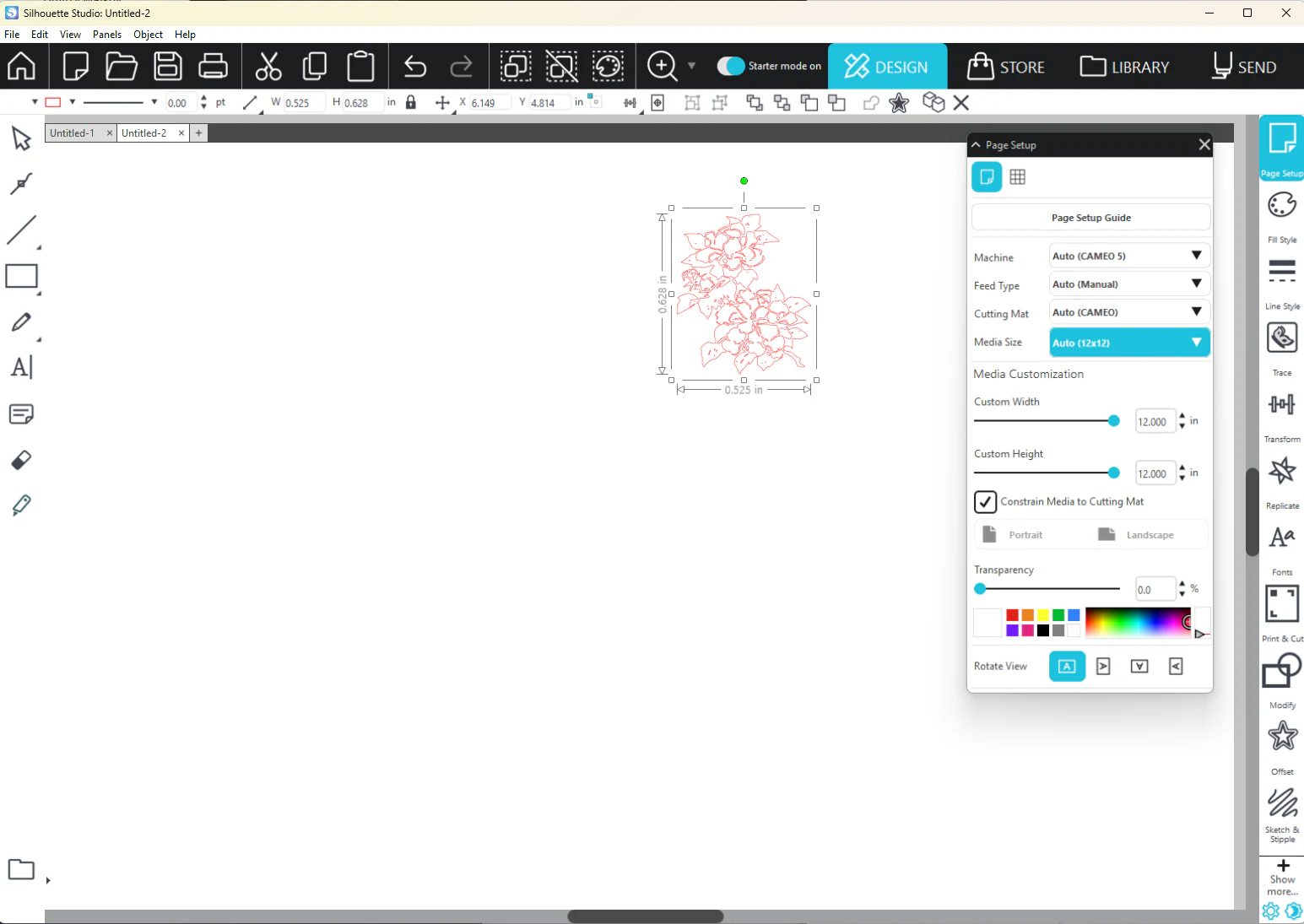
Save your editable master separately. Export an SVG copy for cutting; Plain SVG in Inkscape removes editor-specific data. In Illustrator review the SVG export options rather than delivering an AI file to software that expects SVG. Reimport the copy into the actual laser/cutter program and check dimensions, holes, embedded images and operation layers.
Troubleshooting
- Missing photo: check whether the image was linked instead of embedded, and whether the target software supports raster content inside SVG.
- Double cut: inspect overlapping duplicate paths before production. A thicker displayed stroke does not necessarily change a centreline cut.
Manufacturer documentation
Next steps and project ideas
Next: layered laser projects, or go back to the Learning Center.
Take the design into your software
Was this guide helpful?
More in Your software
Keep up with MyLaserTools.
Email me about new tools, product updates, tutorials, and occasional MyLaserTools offers. Unsubscribe at any time.
© 2026 MyLaserTools.com. All rights reserved.