

How to make engraved wooden standees
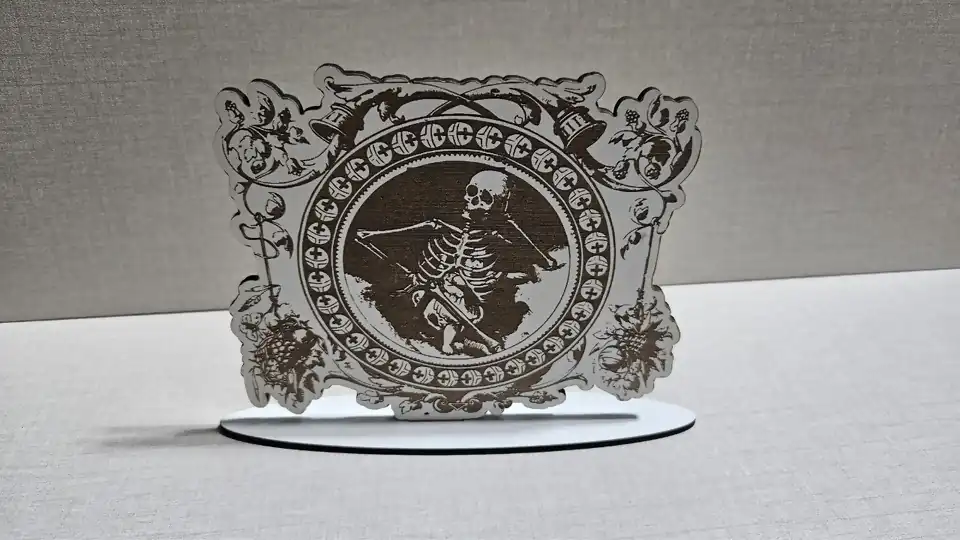
The tool turns one picture into a set of laser parts. The figure is engraved and cut around its outline, then either stands in a separate base or is cut twice with half-height slots so the two copies cross.
What You'll Need
- An SVG, such as a bird or a rose from the Art Library, or a JPG, PNG or WebP photo.
- 3 mm plywood, MDF or another sheet your laser can engrave and cut.
- Calipers to measure the real sheet thickness.
1. Open the artwork
An SVG is engraved as vector fill, which stays crisp at any size. A photo or PNG is engraved as a greyscale image, so set your laser software to image or dither mode for that layer.
2. Choose the cut and size
- Follow transparency for SVGs and transparent PNGs.
- Remove plain background for artwork scanned on white paper.
- Cut to shape to keep the whole picture inside an arch, rectangle, circle or heart.
Set the artwork height and the outline border. Turn on Score an inner outline for a thin frame line just inside the edge.
3. Pick the stand
Slot base: one tab, or two legs for wide figures, with a matching slot in an oval, rounded or round base sized from the figure width. Cross slot: two copies with slots to the middle, a spine of solid wood around each slot and a flat foot, so the halves slide together and stand without a base.
4. Engrave and cut
Download the SVG. The engraving is blue, an optional score line is teal and every cut is red, with the base laid out beside the figure. Engrave first, then cut.
Choose Your Build Method
Check the fit
- Measure the sheet with calipers and enter that thickness. Plywood sold as 3 mm is often 2.8 to 3.2 mm.
- Cut one base and test the tab before cutting a batch. Raise the slot clearance if it is tight.
- For a cross slot, push the half with the bottom slot down over the half with the top slot until both feet sit flat.
Make It Yours
A cross-slot tree or bird makes a table decoration with no base to lose. A row of small slot-base figures works as place cards, with a name engraved on each base in the Design Editor.
Keep up with MyLaserTools.
Email me about new tools, product updates, tutorials, and occasional MyLaserTools offers. Unsubscribe at any time.
© 2026 MyLaserTools.com. All rights reserved.