

Engraving Standee Generator
Engrave a bird, a rose or your own photo on wood and cut it out with its own stand: a slotted base, or two halves that slot together in a cross.
1. Add your photo or artwork
Your image stays in your browser and is never uploaded.
2. Choose how to cut it
3. Standee settings
Upload an SVG or a photo, or bring a piece over from the Art Library, to start your standee.
Engraving standee examples
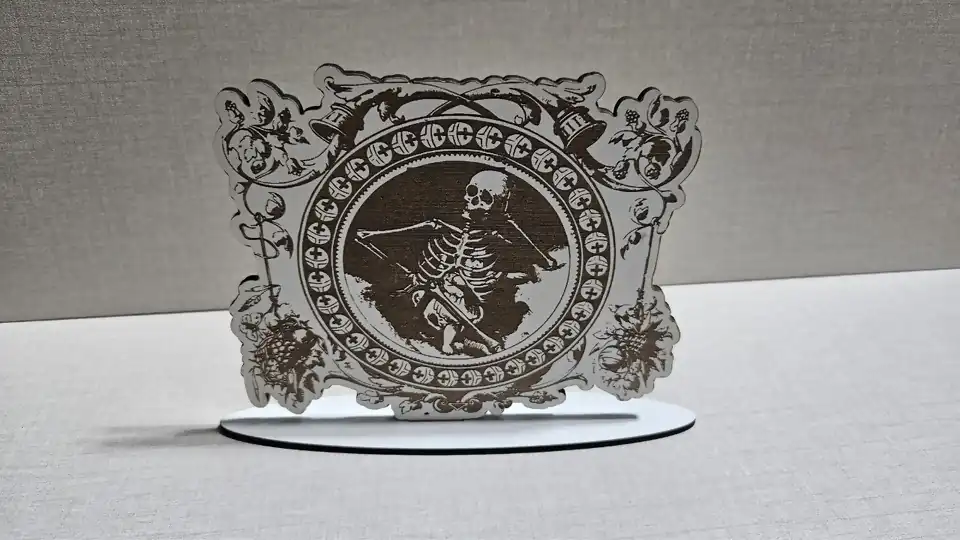
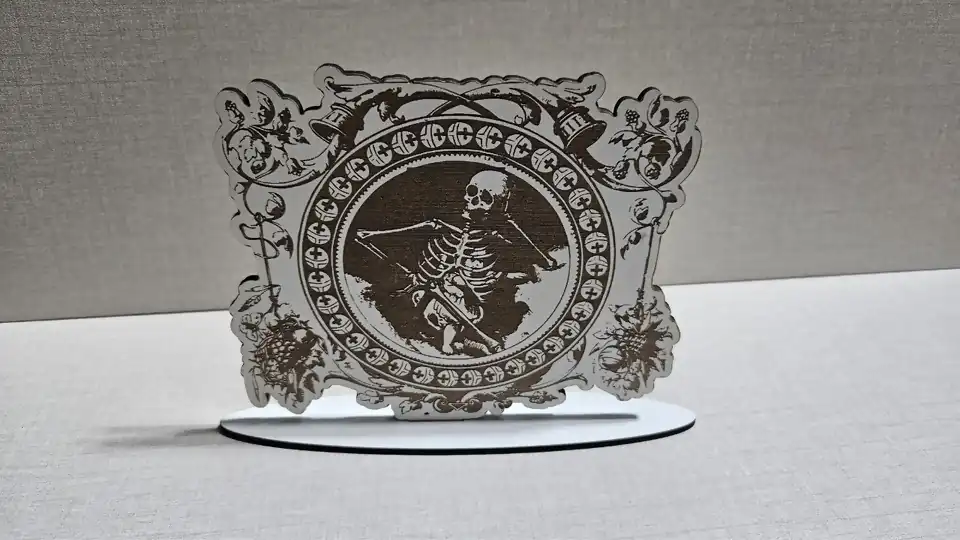
An engraved standee cut around the artwork, standing in a slotted oval base.
Cut from:
Cut around the outline of the artwork, with one tab into an oval base.
Open an SVG, such as a bird or a rose from the Art Library, for vector engraving. A photo or PNG is engraved as a greyscale image instead.
Pick how to cut around it. Follow transparency works for SVGs and transparent PNGs; plain and photo backgrounds can be removed in your browser. Cut to shape keeps the whole picture inside an arch or circle.
Set the height and the outline border, then choose a slot base with one tab or two legs, or a cross slot. Enter the measured sheet thickness so the slots fit.
Download the SVG. Engrave the blue layer first, then cut the red lines, and push the figure into its base or slide the two halves together.
Run a test on scrap first. Plywood and MDF vary by a few tenths of a millimetre, so check one tab in one slot before cutting the whole set, and change the slot clearance if it is tight.
Frequently Asked Questions
Yes. The Engraving Standee Generator is 100% free with no limits, no watermarks, and no trial period. Generate and download as many files as you want, free forever.
Engrave SVG art or photos on wood and cut them out as standees with a slotted base or a cross-slot stand.. Adjust the settings, preview your design in real time, and download a ready-to-make file in seconds.
It exports clean SVG files for laser cutting, CNC, and vinyl, plus STL and multi-colour 3MF files for 3D printing. Everything is generated instantly in your browser.
Laser cutters and engravers including Glowforge, xTool, LightBurn, OMTech, Epilog, Trotec, Thunder Laser, and any machine that accepts SVG or vector files. CNC routers and mills via SVG import in tools like Vectric, Carbide Create, Easel, and Fusion 360. 3D printers via slicers such as Bambu Studio, PrusaSlicer, OrcaSlicer, and Cura, with 3MF files carrying colour data for multi-colour prints.
You can use wood, acrylic, leather, MDF, plywood, cardboard, and paper for laser cutting and CNC, and PLA, PETG, ABS, TPU, and any filament your printer supports for 3D printing. The generated files are standard formats compatible with any material your machine can handle.
No account or sign-up is required for the Engraving Standee Generator. It runs entirely in your browser, your designs never leave your device, and there is nothing to install.
Yes. A commercial license is included, so you can sell products made with the Engraving Standee Generator on Etsy, Amazon Handmade, Shopify, at craft fairs, or anywhere else. Attribution is appreciated but not required.
Visit the MyLaserTools Learning Center for a step-by-step Engraving Standee Generator guide, plus material tips and file-format help for laser cutting, CNC, and 3D printing. The guides walk you through every setting and how to prepare your files for your machine.
Open the Engraving Standee Generator guideKeep up with MyLaserTools.
Email me about new tools, product updates, tutorials, and occasional MyLaserTools offers. Unsubscribe at any time.
© 2026 MyLaserTools.com. All rights reserved.