

How to make layered wall art panels
Difficulty: easy. Time: 10 minutes to design, then cutting and gluing. Method: laser cutting.
A layered wall panel is a few flat sheets cut from the same pattern and glued in a stack. The front sheet has thin bars and big openings. Each sheet behind it has wider bars, so the openings step in toward the back and the panel gets depth without any carving.
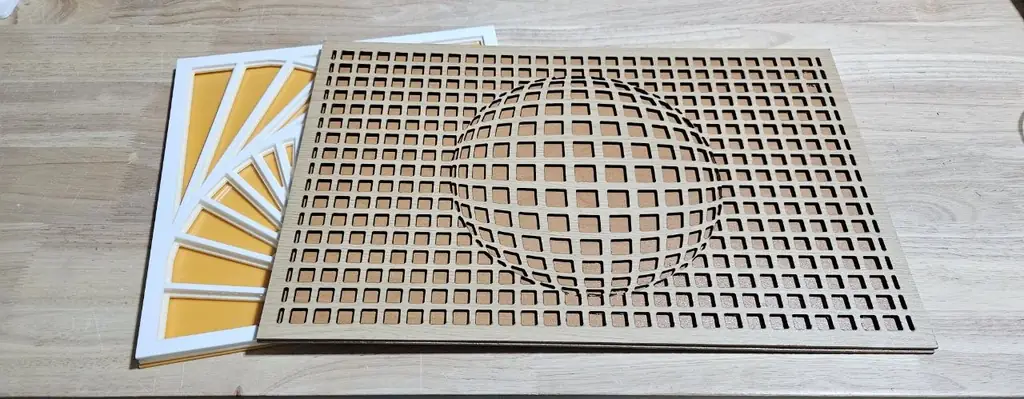
The photo shows two finished panels: a Vega Grid optical illusion that bulges into a sphere, and a Sunburst stacked in white and yellow behind it.
What You'll Need
- 3 mm sheet material for every layer: TruFlat White Plywood for the front and cast acrylic or more plywood for the sheets behind it.
- Wood glue for plywood, or a clear acrylic adhesive for acrylic sheets.
- Clamps or a few heavy books to keep the stack flat while the glue sets.
- A sawtooth hanger or adhesive strips for the wall.
1. Pick a pattern
Open Pattern and choose a layered design, a mandala, an optical illusion or any tile from the pattern library. The thumbnails show the stack with your current settings. Pattern size makes the repeat bigger or smaller, and patterns with a random layout, such as Voronoi, get a New random layout button.
2. Set the sheets and the layer step
- Sheets sets how many layers the panel has, from 2 to 8. Sheet 1 is the back.
- Layer step is how much wider the bars get on each side, per sheet going back. Set it to 0 to cut every sheet the same, for example to stack several sheets of thin material into one thick panel.
- Bar width sets the strips on the front sheet, and Smallest opening fills in gaps too narrow to cut cleanly.
- If the sheet list warns that the back sheets have almost no openings left, lower the layer step or the bar width, or make the pattern bigger.
3. Change the sheets underneath
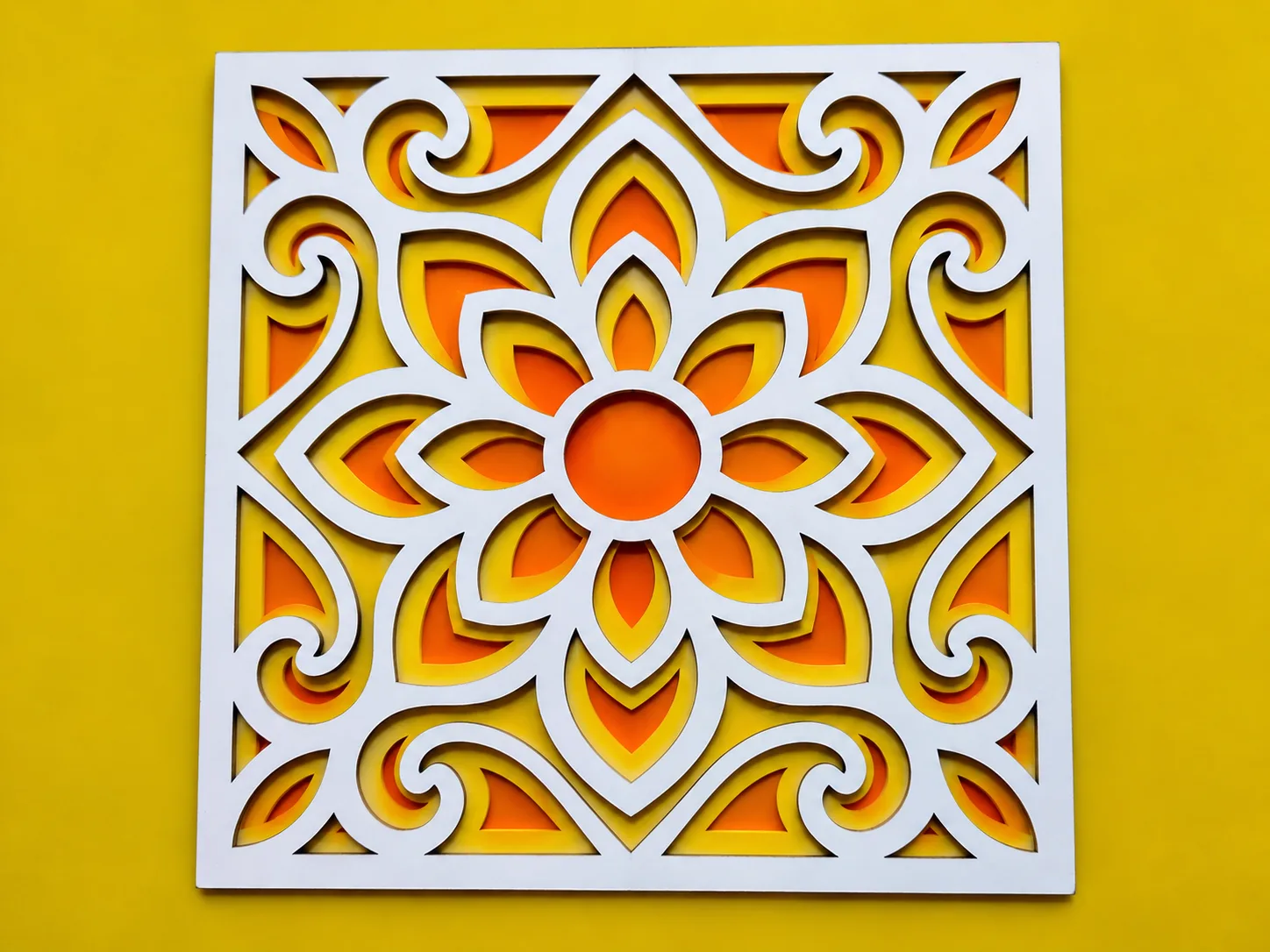
Under Lower sheets, Aligned keeps every sheet lined up. Rotate, Zoom and Spin turn or scale the pattern on each sheet further back, so the layers stop lining up and the panel looks twisted or deep. Mix in a second pattern uses a second design on every other sheet behind the front.
4. Shape the panel
Choose a Square, Round or Rectangle panel, set the size and the Frame width. The Back sheet can be Solid to close the panel, or Patterned to let light through for a lightbox.
5. Download the sheets
Download SVG puts every sheet in one file. The sheet list under the preview downloads one sheet at a time, which is handy when each sheet is a different material. Open in Design Editor takes the sheets into the editor for more changes.
Choose Your Build Method
Cut and glue the stack
- Measure your sheet with calipers and set Sheet thickness, so the 3D preview matches the real stack.
- Cut each sheet from its own material. Cut the inner openings before the outer edge if your software lets you order cuts, so the sheet does not shift.
- Lay sheet 1, the back, face down first. Spread a thin layer of glue on the bars only, so it does not squeeze into the openings.
- Stack the rest on top in order with the edges lined up, then clamp or weigh the panel flat until the glue sets.
Make It Yours
Try an optical illusion such as Vega Grid in a single wood-grain sheet over a darker back, or a mandala in three colours of acrylic. A patterned back sheet with an LED panel behind it turns the panel into a lightbox.
Keep up with MyLaserTools.
Email me about new tools, product updates, tutorials, and occasional MyLaserTools offers. Unsubscribe at any time.
© 2026 MyLaserTools.com. All rights reserved.