

How to make engraved art ornaments
The tool places your picture inside an ornament outline or cuts around it, adds a hanging loop at the top and writes one SVG with the engraving and the cut.
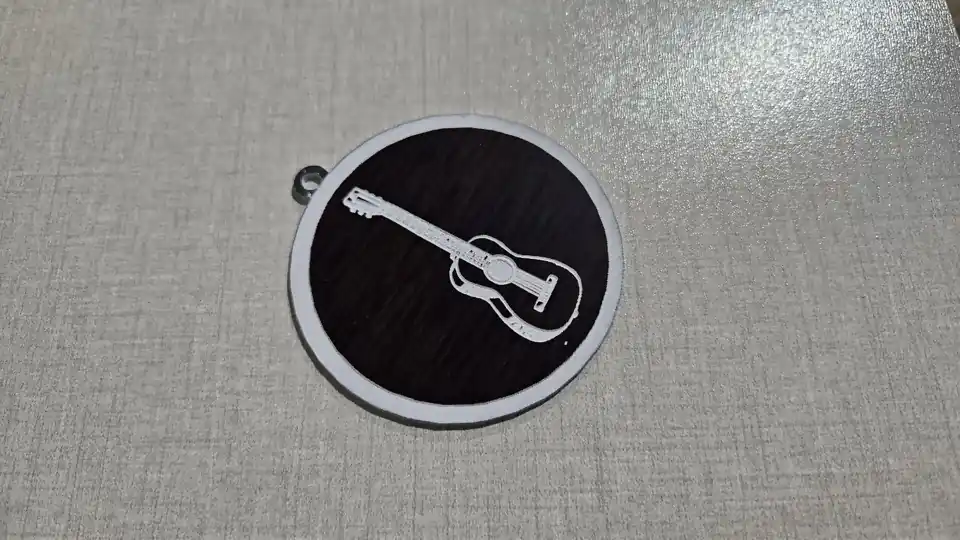
What You'll Need
- A monochrome SVG from the Art Library, your own SVG, or a JPG, PNG or WebP photo.
- 3 mm birch plywood or MDF, or a 3D printer and two filament colours.
- Ribbon or twine for hanging.
1. Open the artwork
Upload a file, choose Browse the Art Library to pick a piece without leaving the tool, or open a monochrome piece in the Art Library and choose Make it into, then Ornament.
2. Pick the outline
Cut to shape puts the artwork inside a ball, bauble, drop, oval, ribbed ball, star, bell or tulip, with an engraved frame you can turn off. Follow transparency cuts around the artwork with an even border.
3. Download
For a laser, download the SVG: the engraving is blue and the cut is red. For a 3D printer, switch Make it on to 3D printer and download the 3MF or STL.
Choose Your Build Method
Engrave and cut
- Engrave the blue layers first, in image or dither mode if the engraving is a photo.
- Cut the red outline and the hanging hole last.
- Wipe the soot off with a damp cloth and oil the face.
Make It Yours
A tree of engraved botanical ornaments looks good in plain birch. A pet portrait on a ball makes a keepsake for the year.
Keep up with MyLaserTools.
Email me about new tools, product updates, tutorials, and occasional MyLaserTools offers. Unsubscribe at any time.
© 2026 MyLaserTools.com. All rights reserved.