

Making map posters, postcards, and bookmarks with the Print Map Generator
Difficulty: easy. Time: about 10 minutes to design. Best methods: home or print-shop printing, plus laser engraving from the SVG.
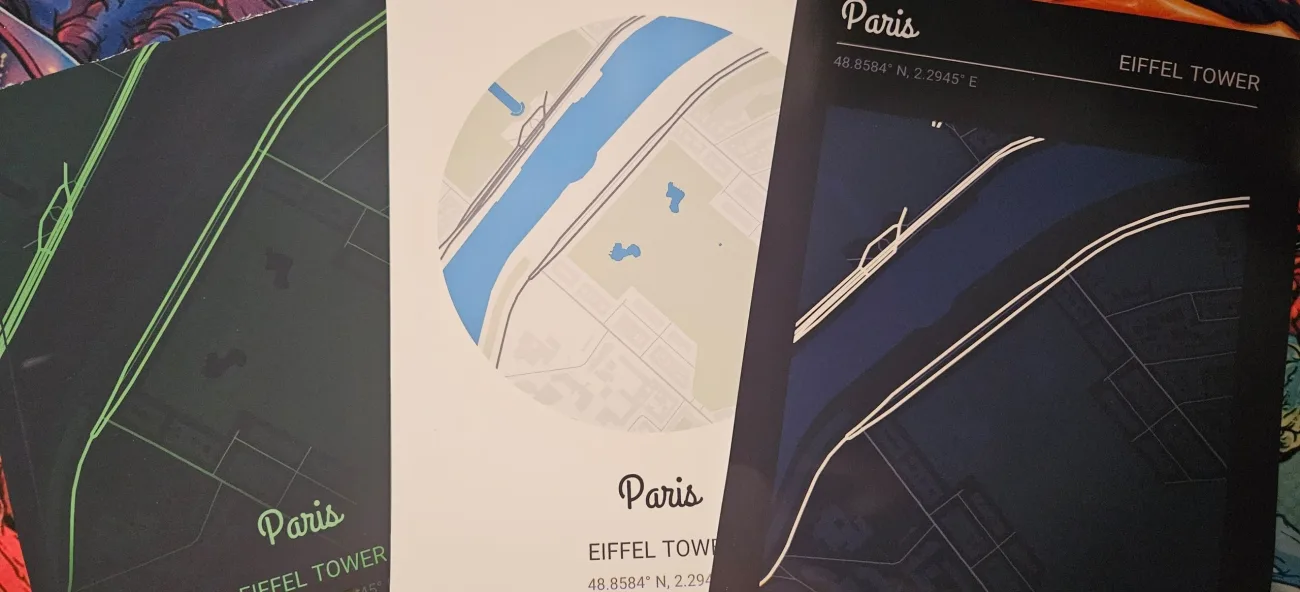
A framed map of the place you met, the street you grew up on, or the city you got married in makes a gift people keep. This tool does the styling for you: search a location, drag and zoom to frame it, then choose how it sits on the page. The map is the centrepiece, and the title, coordinates, frame, and marker arrange around it. Everything exports as a single flat layer, so it prints cleanly at home or at a shop, and the SVG opens in the design editor for further edits.
What You'll Need
- Printing: any home printer or a print shop, plus paper or card in your chosen size
- Framing: a frame that matches your size, or use a custom size in millimetres to fit a frame you already own
- Laser engraving (optional): the SVG works as single-layer vector art for engraving on wood or acrylic
- Extras: nothing to install, the tool runs in the browser and a free account is used to generate the export
Step 1 - Frame the location
Search for any city, town, or place, then drag and zoom the map until the streets you care about are clearly separated. Zoom in for a neighbourhood, out for a whole city. The coordinates fill in automatically from the map centre, and you can override them with your own text.
Step 2 - Pick a layout preset
- Classic: a rounded rectangle map with the title and details centred below it.
- Circle: a circular map window, great for a single landmark.
- Editorial: a large map with a header on top, title on the left, place on the right, a divider line, and coordinates beneath.
- Full frame: the map bleeds to the sheet edges with a thin frame and the text over a soft fade.
Step 3 - Style the colours and shape
Choose a palette, from soft and vintage to bold two-tone and dark terminal styles, or open Edit colours to adjust the background, water, roads, parks, buildings, and every piece of text starting from the current palette. Pick a map shape, or turn on Full sheet for an edge to edge map, and use Map size to leave more or less breathing room.
Step 4 - Add your text
Enter a title, place name, date, and a short caption. Choose Text below for a centred block, or Header for a title and place on one row with a divider. Set separate title and label fonts and a text size to match the mood.
Step 5 - Choose the form factor
- Poster: A3, A4, A5, or US Letter for wall art and framed prints.
- Postcard: 105 x 148 mm for a mailer or small keepsake.
- Bookmark: 55 x 165 mm, a tall strip for a single street or coastline.
- Custom: any width and height in millimetres, in portrait or landscape.
Step 6 - Export
Download a PNG for quick printing, or an SVG for crisp vector output at any size that also opens in the design editor. Both are a single flat layer.
Choose Your Build Method
Home and print-shop printing
- Match the poster size to your paper or frame, or set a custom size to fit a frame exactly.
- Print the PNG at home for a fast result, or send the SVG or PNG to a print shop for large or premium stock.
- For framing, choose the same aspect as the frame so the map fills it without cropping.
- Use a heavier matte card for postcards and bookmarks so they feel substantial.
Make It Yours
- Anniversary poster of where you met, with the date as the caption.
- New-home print of the new address, framed for the entryway.
- Wedding map with the venue centred and the couple's names as the title.
- Set of postcards of favourite travel cities in one palette as a matching series.
- Bookmark of a hometown high street for a reader in the family.
- Full-frame city map in a dark palette as a bold feature-wall piece.
- Engrave a coastal map onto a wood plaque using the SVG in one tone.
New free tools, every month.
New laser cutting tools, what's coming next, and features we're building right now. Only MyLaserTools.com news. No spam, ever.
© 2026 MyLaserTools.com. All rights reserved.